Blog

  • Selected Offline Messages and Password Tips

    Try gotoassist express free for 30 days by going to gotoassist.com/techpodcast

    Back in January 2009, Gmail came out with a labs feature to let you access your Gmail without an Internet connection. The mail was synchronized when you were connected and then you could access it when you were offline. For frequent travelers, this is a terrific feature. You can learn more about it by listenging to the Gmail Podcast episode simply titled Offline from March 1, 2009.

    The downside of the standard offline mode is that it took a very long time to download the messages or in some cases, all the messages you wanted were not there due to the way the software chooses which messages to download. You might find yourself with plenty of messages from a year ago that have little value, but not all your inbox was synced.

    Gmail Offline now lets you choose which items to download and how far back to get them. This not only saves download time, but also ensures you have relevant information at your fingertips. For example, my Gmail archive is currently around 30,000 messages. It would take a couple hours to download all those messages, and according to the heuristics, I might not get all of the the ones I want.

    To setup selected offline messages, you’ll need to enable the “Offline” labs feature from the Labs tab on the Settings screen. Once that is done, you can use the “Offline” tab from the Settings screen. The “Download Options” section of that screen is where you configure how far back you want to sync your conversations and from which labels. The old method would have defaulted to all conversations from all labels. I setup mine to only go back a month and then fine tune it to first, ignore most labels, then chose some like Inbox that I want all conversations, and finally chose a few fairly active labels where I only need the past month. Once I saved those options, I was able to sync my data in a few minutes and take it on the road.

    This feature really makes Gmail Offline a lot more convenient, but you will need to remember to check the settings from time to time to ensure you add labels as they are needed and remove those that are not.

    Here’s today’s quick tip – Be sure to change your Gmail password at least a couple times a year. There are people on the Internet who make a career out of trying to steal passwords. Some guidelines to follow when choosing a new Gmail password:

    • Make it unique. Don’t make it the same as your other Internet accounts. If someone compromises your Gmail account, they could have access to lots of other information on the Internet. If you have lots of different passwords to remember, I recommend a password vault program like KeePass available from keepass.info. I use because I have over 100 different passwords to remember at home and work.
    • Use a combination of upper case and lower case letters, numbers, and symbols. One common trick is to replace letters with symbols. For example, replace S with a dollar sign, or T with a 7.
    • Don’t use simple words found in the dictionary like “house”, “automobile”, and definitely not “password”.
    • Don’t use personal information that is easy to find such as your street name, dog’s name, and so on.
    • Putting two or more words together with symbols is a good idea. Something like “dino+eggs”, of course replacing some of those letters with numbers or other symbols would make it a much stronger password.
    • Finally, make you password something you are likely to remember. “dino+eggs” would be great if you are a paleontologist, but not necessarily if you are a stock trader.

    You can change your password by going to google.com/accounts, or if you are starting from Gmail, go to settings, click on the “Accounts and import” tab, then look near the bottom for a link labeled “Google Account Settings”.

  • Gmail Notifiers Compared

    Try GotoAssist Express Free for 30 days at http://gotoassist.com/techpodcast

    Using webmail makes sense. It’s easy to access from any computer, and you don’t need to worry about installing and maintaing software, but the drawback is you have to keep a browser window open to know when you have email. The solution to this is to have a small application installed on your machine that monitors your Gmail account and pops up an alert when you get a message.
    For notifiers, I found a few options. Gmail Notifier for Windows from Google, Google Notifier for Mac (same thing for Mac with a slightly different name, also available straight from Google), Gmail Notifier from http://gmailnotifier.com, and Notify for the Mac from Vibealicious (http://vibealicious.com/apps/notify/). I know, the names are all very similar.

    Let’s start with the one that Google provides at http://toolbar.google.com/gmail-helper/notifier_mac.html called the Gmail Notifier. It’s pretty basic. It supports Windows and Mac, sits in your system tray or menu bar, monitors your Gmail account and pops up when you get a message. Pretty simple to download, install, and be up and running to monitor your Gmail account.

    Let’s say you have more than one Gmail account and you chose not to use the multiple account feature on the server to send and receive all your mail in one place. That’s where you might want to use Notify from Vibealicious. It allows you to monitor multiple Gmail accounts at once. It’s only available for Mac, but looks beautiful. It sits in the menu bar with a little icon and number of unread messages next to it. When you click on it, you get a full interface. Like the other tools, Notify is free.

    Finally, there is Gmail Notifier from http://gmailnotifier.com. Like Google’s product, it supports both Windows and Mac. Similar to Vibealicious, it also supports multiple accounts. It runs in the system tray (or Mac menu bar) like Google’s tool, and when you click on it, you can pop up an index of all your accounts and how many unread messages are in each. It has simple controls to let you manage the message index and select messages for deletion, mark them as read, etc. It even supports Google Calendar alerts. I was caught off guard by the default alert which announced in a female voice “Incoming messages” with my laptop volume a little high. And of course, it’s free.

    Of the three, Gmail Notifier from gmailnotifier.com is my pick for feature robustness and platform compatibility.

  • Docs Preview and Got The Wrong Bob

    Welcome the Gmail Podcast, a collection short hints, tips, and tricks to help you get more from your Gmail account. I’m your host, Chuck Tomasi.

    Try GotoAssist Express Free for 30 days at gotoassist.com/techpodcast

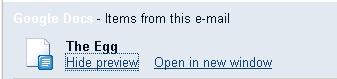
    Let’s say you’re a typical Gmail user and your colleagues send you links to a Google document, either a spreadsheet, presentation, or regular text document. Typically, you would click the link to open the document in Google Docs. That’s a little cumbersome when all you need is a quick peek to get a few facts or figures. That’s where the labs feature called “Docs Previews” comes in handy. Like any labs feature, you can find it under setttings, on the labs tab. Enable it and save your settings. Now when you get a link to a Google doc, an option will appear on the bottom of the message to preview the document, almost as if it were an attachment. Sorry, it doesn’t allow you to preview actual Microsoft document attachments like Excel or Word.

    docs-preview
    Another handy labs feature that can save you from some potential embarrassment is called “Got the wrong Bob?” This feature looks at the patterns of recipient groups you have sent to and tries to prevent you from including the wrong one.
    For example, I normally send email to Kreg S, Victor C, and Steve H, about a surprise party we’re planning for Steve R. Well, it’s Saturday morning and I’m feeling a little tired from a long Karate workout the night before. I start typing and the automatic insert changed the order of my lookups for some reason so my quick typing gets me Kreg S, Victor C, and Steve R! It would be a bit of a problem if the mail went to Steve R instead of Steve H – obviously, it would ruin the surprise. Fortunately, I’ve got “Got the wrong Bob?” feature turnd on and it shows a red message just under the recipient box that says “Did you mean Steve H instead of Steve R?”
    Again, like all other labs features, you can find “Got the wrong Bob?” under the labs tab of the settings screen. As a side note, be aware that the labs feature formerly known as “Suggest More Recipients” has been changed to “Don’t forget Bob”.
    That’s all for this time… Comments, suggestions, or questions can be sent to gpodcast@gmail.com or check the website for full information and archives of all previous Gmail tips at chuckchat.com/gmail. I have no affiliation with Google other than as a satisfied Gmail user. Thank you for listening, and don’t forget to write.

  • Google Sync

    Try GotoAssist Express free for 30 days, by going to gotoassist.com/techpodcast

    Google Sync can help keep your iPhone/iPod Touch, Windows Mobile, BlackBerry, and Symbian smartphone stay synchronized with calendar, contacts, and email on your Google account wirelessly.

    This is more commonly known as “push technology” because you don’t have to manually request your calendar, contacts, or email be updated. Most people find push technology more convenient. The advantage is that you get your updates sent automatically to the native apps on your mobile device and those are synced with your Google account information. The downside is that you cannot take advantage of many of the features of the web application such as labels, stars, and archiving in Gmail, for example.

    Setting up Google Sync was pretty basic. I was able to follow the instructions online and get my iPod Touch setup to sync my email and calendar items in a matter of minutes. The key is to setup the account as a Microsoft Exchange account. Google Sync uses the Microsoft ActiveSync technology to do the heavy lifting. Generally, I still use the web interface or the Gmail applet on my iPod Touch so I can use the cool extras to manage my email. The place where Google Sync has made a big difference for me is the calendar. It sure is handy to have my Google calendar items, which are generally personal, right next to my work items all in the palm of my hand. Now when someone asks me “Are you available next Tuesday?” I have everything I need in one place.

    It should be noted that the iPhone and iPod Touch require OS v3.0 or higher.

    You can find step-by-step instructions for your mobile device at m.google.com/sync.

    Here’s today’s quick tip. You might want to check out the labs feature “Hide Read Labels” if you want to have a little less clutter on the left side of you screen in the labels tab. If you turn on this labs feature, it will only show you the labels that have unread messages in them, in essence, hiding all the labels where the messages are all read. This is particularly useful if you are one of those people who use labels as a to-do list. For example, saving unread messages in a label called “Weekend” will have this folder displayed until you’ve read all the messages, in effect, checking them off your to-do list, then the list goes to hidden. Just another handy way to keep the relevant information at your fingertips while keeping the interface clean.

  • Gmail Backup

    Welcome the Gmail Podcast, a collection short hints, tips, and tricks to help you get more from your Gmail account. I’m your host, Chuck Tomasi.

    Try GotoAssist free for 30 days at gotoassist.com/podcast

    This past week I came across a really neat application called “Gmail Backup”. The name says it all. All you do is download and install the tool, provide your Gmail credentials, point it at a folder on your system, and click the Backup button. It takes care of the rest. And best of all, it’s free.

    There’s a Windows command line and GUI vesion, a command line and GUI Linux version, and a Mac command line version only. I have heard rumors that a GUI version for the Mac is in the works so stay tuned to the Gmail Podcast for more information. Running from the command line actually makes sense if you want to schedule regular backups from a script. See the documentation on their website at www.gmail-backup.com.

    Regardless of your platform, you will need Gmail IMAP enabled. You’ll find this in the settings under the “Forwarding and POP/IMAP” tab. For Linux users, you will need the wxPython (http://wxpython.org) packages installed. It also requires the ctypes module; which should be included in the Python 2.5 distribution. For earlier versions of Python you can find the package in the repositories of your distribution.

    I downloaded and installed the Windows XP version and was up and running fairly quickly. I created a new folder under “My Documents” called “My Gmail Backup”. Feel free to put the folder where you like or create multiple fodlers if you plan on backing up multiple accounts. You can even do this after you start the application. Currently my mailbox is using approximately 1.6GB of storage on Gmail and it took a little over an hour to backup the first 600MB before I stopped. I had to relocate which would have interrupted my Internet connection. When I started it back up again, Gmail Backup recognized how much work it had done, took a few minutes to scan past the 9700 messages already backed up and resumed where it left off.

    Other parameters availble in the application allow you to set a “Before date” to backup all messages before a given date, and all message since a given date. On first invokation, both dates are the same so it backs up all messages. As it retrieves the messages, they are stored in individual “eml” files in your backup directory. The ELM files can be opened by Microsoft Outlook, Outlook Express, Internet Explorer, IncrediMail, Thunderbird, and for Mac users, Entourage, and of course Apple’s Mail program. EML files are nice because not only do they preserve the times, sender, and other standard information, they also contain any file attachments that were on the files on Gmail. And yes, Gmail Backup also remembers your labels that you applied to the messages. They are saved in a mapping file called “labels.txt”, although you may run in to problems if your labels contain non-alphanumeric characters (a-z and 0-9).

    And what would a backup program be without a restore feature? Gmail Backup allows you to re-upload all or part of your backup. If you’ve got multiple Gmail accounts or host your own domain from Gmail, you can backup messages from one account, and restore them to another account simply by providing the right credentials.

    Again, I recommend visiting the website for full documentation, FAQs, and active forums at www.gmail-backup.com

    For what it’s worth, there are other ways to backup your Gmail account, including Thunderbird (which has a limitation of 64,000 messages), Fetchmail (a little more technically involved and requires Cygwin to be installed), or Getmail (for you Linux users). I just found Gmail Backup to be quick and easy to use.

    Here’s today’s quick tip… If you receive an email with a subject something like “Warning code: VX2G99AAJ”, just report it as spam, a phishing attempt, or delete it. The message body says it’s from “The Gmail Team”, however the message header says something quite differently. This is just an attempt to get your user information. Don’t even bother opening the message.
    That’s all for this time… Comments, suggestions, or questions can be sent to gpodcast@gmail.com or check the website for full information and archives of all previous Gmail tips at chuckchat.com/gmail. I have no affiliation with Google other than as a satisfied Gmail user. Thanks to you for listening, and don’t forget to write.

  • Integrated Gmail

    Try gotoassist free for 30 days by going to gotoassist.com/podcast

    OK Google users, listen up. If you’re like me and use Gmail, Google Reader, Calendar, and many more apps, you likely find yourself wishing there was one single place to see and manage all that information rather than jumping between many different interfaces and applications.
    Even though Google hasn’t come up with a unified interface, there’s a Firefox add-on that can do it for you called Integrated Gmail. It allows you to pull together your Google applications plus third party sites in the Gmail interface.

    Listener John writes in that he’s got a netbook and is looking for something to offer him more screen real estate to see his conversation index and messages. I didn’t realize it at first, but Integrated Gmail add-on also offers screen controls to expand the screen usage on the top and left of the screen. Just look for the little green arrows. Whether you are a netbook user or just looking for a page to view all your Google apps, Integrated Gmail is a good choice.
    Here’s today’s Quick Tip – Hey Google Voice users, Gmail now has a labs feature that allows you play your voice mail messages right in Gmail. Google Voice is a service that allows people to call one number and ring each of your multiple phones. If you are already a Google Voice user, you are used to getting your voice mail notifications as email. After someone leaves a voice message, you get an email with a transcript of the message (with varying degrees of accuracy) and a link to play the message. Previously, if you used the link it would take you to a different page to play it. By using the labs feature, you can play the message right from within Gmail. To use it, go to Settings, then click on the Labs tab, look for Google Voice player, select enable, and save you changes. Now when you get a message, the player will appear right below the message in Gmail.

  • Contact Chooser

    contact-chooserTry GotoAssist free for 30 days

    Have you found yourself trying to send a message to someone and you cannot remember their last name? John? John? What was John’s last name? OK, John’s not your closest friend and you don’t send him email all the time. In fact, you don’t even know if you added him to your Gmail contacts, you may have only sent a message to his email address and never used his full name. You start typing j-o-h-n in the To: field and auto-complete comes up with the people who have John in their name and you don’t find the person you are looking for. Was he even in the hundreds of contacts you have listed?

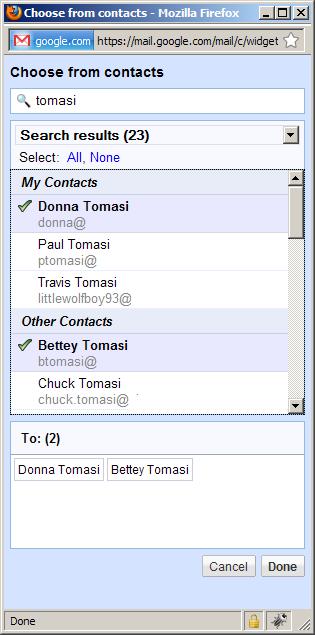
    Now I have to admit, there are times when I would love to just browse my contacts list, or type a few characters, or even just poke around the contact groups I setup to get a better idea where John might be hiding. The latest update to Gmail answers this question. Google has placed a link on the “To”, “Cc”, and “Bcc” labels that bring up a contact chooser (see the image.) This works similar to the buttons next to the fields in Microsoft Outlook, only better.

    If you type in text in the area marked “Search my contacts”, Gmail will start filtering out your people. In my case, I typed “tomasi” and got several of my family members. Now I can just click and choose them. I can also narrow down the search to my groups by using the drop down list just below.

    This is a nice addition to the auto-complete feature if you’re really not sure how to spell someone’s name or want to quickly select all the Tomasis at once.

    Here’s today’s quick tip. Listener John wrote in about the Goto Label feature. He says:

    “One of my computers is a netbook, so the space saving tips catch my ear.
    The “G” “L” combination to go to a label sounded like a great feature, but there is no drop down reminder. So I have to remember the name of the label.
    My solution – kind of clunky – was to rename my labels so they all start with “L-“
    Now when I enter “G” “L” and then “L”, I see a list of my labels.”

    Thanks for the tip John. I generally use a dozen or so labels frequently; then there are some obscure ones that may go unused for months and I don’t recall their names or functions. Your suggestion seems to address that nicely. If you’ve got an tip about Gmail, send it along. I’d love to hear from you.

    That’s all for this time… Comments, suggestions, or questions can be sent to gpodcast@gmail.com or check the website for full information and archives of all previous Gmail tips at chuckchat.com/gmail. I have no affiliation with Google other than as a satisfied Gmail user. Thanks to you for listening, and don’t forget to write.

  • Enhanced Gmail Plugin for Blackberry

    This episode is sponsored by GotoAssist.com. Try it free for 30 days.

    A few days ago my mobile phone at work was replaced with a Blackberry Curve. I’ve used many smartphones in the past, but this was my first Blackberry. I am still learning my way around the interface, applications, and their options, and I have to admit – I can see the attraction to this platform. It was only a couple days later that my Technorama co-host, Kreg Steppe, let me know that there is a new plugin available for the Blackberry that lets your standard Blackberry mail app work better with Gmail. Until recently you could send and receive email using the standard IMAP protocol, but that fell far short of the functionality that many Gmail users want including labels, stars, and more – causing them to download a separate app to manage their Gmail. Well, those days are over.

    With the Enhanced Gmail plugin for Blackberry, you can: Add and remove labels and stars from your messages, report spam, perform local and remote searches, archive mail messages, view related messages as a single conversation (also known as threads in other mail programs), and much more. The plugin requires Blackberry Device Software version 4.5 or greater and Google Mail Integration with the Blackberry service. Most of you probably already have this if you have a recent Blackberry.

    Begin by pointing your Blackberry web browser to blackberry.com/gmail. Be sure to follow the instructions carefully. If you have an existing Blackberry mail setup to Gmail, you will need to remove it and recreate it.

    It should also be noted that mail synchronization is one way, from the Blackberry device to Gmail. Many changes that happen on the Gmail web interface are not reflected on the Blackberry. To find out more, visit the link to the Blackberry forums, found in the show notes on the Gmail Podcast website.

    http://supportforums.blackberry.com/rim/board/message?board.id=Hello&message.id=198#M198

    Finally, if you use the Blackberry Storm, this functionality is built in to version 2.0.0.13 so you won’t need to download this plugin. I don’t yet know if the enhanced Gmail functionality will be a standard feature of other Blackberry phones in the future. Stay tuned to the Gmail Podcast or visit the website for updates.

    Here’s today’s quick tip. Gmail now has a feature to email your task list. From the Tasks window, choose the Actions menu, and select “Email Task List”. A new message is composed with all the items in that list shown as bullet items and completed items are crossed off. This is a good way to show project status, or let someone know how busy you are and why you haven’t gotten to something they asked you for. Of course, you’ll want to make sure at least a few things are crossed off so you can backup your claims of being so busy.

    Finally, Gmail is rolling out the ability to easily import email and contacts from other email systems like AOL, Yahoo, and Hotmail. This feature was announced to new users in June of 2009 and existing users would be able to do this later. Well, now it’s later. if you want a refresher on the feature and how to access it, you can fid it on the Gmail Podcast recorded June 14, 2009. The short answer is that it is in the settings under accounts.

    That’s all for this time… Comments, suggestions, or questions can be sent to gpodcast@gmail.com or check the website for full information and archives of all previous Gmail tips at chuckchat.com/gmail. I have no affiliation with Google other than as a satisfied Gmail user. Special thanks to long time listener and Technorama co-host Kreg Steppe for pointing me to the Blackberry plugin. Thanks to you for listening, and don’t forget to write.

  • Auto Unsubscribe

    This episode is sponsored by GotoAssist – try it free for 30 days.

    Have you ever wondered what to do with those messages that you get because you are on someone’s mail list? You don’t read them regularly (or at all), but you just don’t see a quick link, or you are not ambitious enough to unsubscribe. Well the geniouses at Google have an answer for that now too.

    The feature is called auto-unsubscribe. The feature is quite simple to use. Just open the message like you normally would, and click the “Report Spam” button. If the message is recognized as a mailing list, Gmail will present a popup window with an option to unsubscribe or identify the message as actual spam. The main difference is that marking it as spam won’t stop the sender from sending more messages in the future.

    If you click the option to unsubscribe, Gmail will send back an Unsubscribe request to the list. This request could take up to several days to process, but I found it to be pretty reliable. I read about this feature several weeks ago, but it took a while before it started working on my account.

    Here’s today’s quick tip… actually two tips regarding labels. The first is my recommendation to enable the labs feature called Goto Labels. Begin by enabling keyboard shortcuts in your general settings, then enable to labs feature Goto Labels. Now you can use the keyboard shortcut ‘g’ then ‘l’ (letter L) which brings up a quick popup window allowing you to type the label. Like addresses, quick typeahead is available. Using this, combined with the condensed screen options mentioned a few shows ago, this gives you rapid access to your labeled messages while maximizing your screen real estate. Which is very important if you have a smaller screen such as those found on netbook models of portable computers.

    The screen resolution of many netbooks is 1024×600 which can be a little constraining for people used to much higher resolutions on desktop or full size laptop machines. When you start applying and displaying one or more labels, you lose the effectiveness of the subject line. Fear not, there is a labs feature for this growing problem also. The feature is called “Hide Labels” and it allows you to turn off labels on the conversation index without affecting the functionality of the labels themselves, like the Goto Labels labs feature just mentioned. Now you can use your netbook and enjoy Gmail even more with the Hide Labels labs feature.

    Finally, it was discovered this week that Gmail has surpassed AOL mail and moved in to third place for online mail services with 37 million users, right behind Hotmail with 47 million, and Yahoo with a commanding lead 106 million unique visitors.

    That’s all for this time… Comments, suggestions, or questions can be sent to gpodcast@gmail.com or check the website for full information and archives of all previous Gmail tips at chuckchat.com/gmail. I have no affiliation with Google other than as a satisfied Gmail user. Special thanks to listener Scott Reynolds for his tip on the Goto Labels labs feature. Thanks to you for listening, and don’t forget to write.

  • Invite Others

    This episode is sponsored by GotoAssist.com. Try it free for 30 days.

    This past week I found myself trying to use a website that manages meeting invitations and keeps track of recipients. Unfortunately, I found out that the email sent from this site is blocked by many firewall and spam filters meaning my invitation did not reach all the people I had hoped.

    It was about that time that I discovered that Gmail has a way to create an event invitation. You can find it just above the text box for your message body when you compose a new email.

    Begin by composing a message as you normally would by entering names in the “To” field and enter a subject. Next, click on the link just below the subject labeled “Add event notification” – several additional boxes will appear allowing you to provide an event title, location, and starting and ending date and time.

    You can place more details, such as a meeting agenda, in the body of the message. When you’re done, just click Send as you normally would.

    If you did not intend to use the event invitation, use the “remove” link just to the right of the event name.

    If your invitation is received by an Outlook user, for example, they see it like any other meeting invitation and click on the “Accept” or “Decline” button. If another Gmail user gets the invitation, they can click on one of the options “Yes”, “No”, or “Maybe” next to the question if they are going.

    As the meeting coordinator you can easily click on “Calendar” at the top of your Gmail screen, locate the event, and see how many people have responded and what their response was. This is important when you need to know whether to bring one or two plates of cookies.

    I found this much more straight forward to use than the website I had previously tried. There are some things to keep in mind when sending invites. First, if you send an email to 500 or more people, or you send a large number of undeliverable messages, you could find your Gmail account temporarily disabled. For those using a POP or IMAP mail client such as Outlook Express, Thunderbird, or Mac Mail, your sending limit is 100 recipients. If this happens, your account should be re-enabled within 24 hours.

    Also, if you need to communicate with a large number of people, you might want to consider a Google Group. Creation and setup of Google Groups is a bit beyond the scope of this podcast. I found that while Google Groups are great for shared discussions it can be tricky to use them to send meeting invites since the responses either go back to the entire group, or appear in the event’s attendees list with the group name instead of the individual who replied.

    Unfortunately, I am in a situation where I want to hand off the meeting invitations to someone else and there doesn’t seem to be a way to share Gmail contacts with a standard or hosted account at this time. The best I can do is export my contacts list and have the new facilitator import it.

    Quick Tip:
    Show pictures from people you know. Gmail will now show pictures in email from people you know. If you have sent that person email at least twice before, the images will automatically be inserted in to the message – this very handy for those family photos, holiday shots, or newborn grandchild. You can also click on the link “Display images below” or “Always display images from (current sender)” if the images are not automatically added. The reason they were not displayed before was done as a security precaution from spammers. Gmail would not display images unless you clicked one of those links and that was annoying. Thank you Google for making image viewing a little simpler.