Blog

  • Suggest More Recipients

    One of the handiest labs features I have found is called “Suggest more recipients”. Like other labs features, you can enable this by going to the Settings link in the upper right, clicking on the labs tab, then locate the feature called “Suggest more recipients”, scroll to the bottom and click “Save Changes”.

    This podcast is sponsored by GotoMyPC. Try it free for 30 days!

    Once you have enabled the feature, begin by entering at least two names in the “to”, “cc”, or “bcc” boxes, Gmail will add a link labeled “Also include”. Gmail scans previous messages you have sent and received in groups and provides those email addresses as suggestions. Now when you find yourself communicating with the same three or four people over and over, Gmail will find those names for you and you can simply click on them to ensure you haven’t forgotten anyone.

    Tip: Gmail Podcast – Title Tweaks

    Begin by enabling the lab feature. This labs feature changes order of elements in the browser title bar from “Gmail – Inbox (20) – chuck.tomasi@gmail.com” to “Inbox (20) – chuck.tomasi@gmail.com – Gmail”. This way you are able (most of the time) to see if a new mail has arrived even if Gmail window is minimized.

  • Insert Images

    It is no longer necessary to use workarounds to put images in your messages or attach them. There is now a labs feature that allows you to insert images as easily as your favorite word processor.

    This episode of Gmail Podcast is sponsored by GotoMyPC.com – get a free 30 day trial!

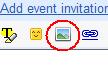
    Begin by going to Settings and click on the Labs tab. Search for the feature called “Inserting images” and click “enable” next to it then scroll to the bottom and save your settings. Now when you are composing a message, you should see a toolbar icon like this:

    gmail-insert-images-icon
    You’ll want to make sure you are in Rich Formatting mode or the icon won’t show up. If you don’t see it, look for a link that says “Rich Formatting”.

    Once setup, just click on the little image icon and you can insert images in a couple different ways. First you can upload an image from your computer, or you can provide a web URL to a specific image.

    To protect you from spammers, Gmail does not display URL based images in messages by default. If you are missing images, you’ll need to click on the link near the top that says “Display images below” or “Always dislay images from…” to see images you embed.

  • Google Searches from within Gmail

    Gmail has had a search feature for a while to allow you to search your mail, but until now, there wasn’t a convenient way to search the internet from within Gmail. Many times I’ve been asked in an email or chat for something and had to jump to Google to find the answer. Rather than open a tab, search the web, copy and paste my answer in to a response, Google has made this much easier with the addition of a Labs feature aptly called “Google Search”.

    Adam de Boor, Software Engineer, explains, “When you turn this feature on from the Labs tab under Settings, you’ll see a new search box on the left side of your inbox. Type your search in, and a window (like a chat window, but a bit bigger) appears at the bottom of your screen with the first few search results. You can click on a search result and it’ll open up in another window (or another tab) so you can make sure it’s what you’re looking for. Once you’re sure it’s a result you need, moving your mouse over the result back in Gmail reveals a pull-down menu that lets you do stuff with the search result.

    What’s more, it remembers the last three searches you did. You can even launch multiple searches and have more than one pop-up window at a time. This is sure to be one of my more used labs features.

  • Offline

    I have to admit I was excited to hear about the Gmail Labs feature simply called Offline. The offline feature allows you to use Gmail when you are offline or on a flakey internet connection. To get started with Gmail Offline, begin by going to Settings> Labs. You’ll first need to enable the offline feature and save your settings.You should now see the “offline” icon as a little green circle, or the words “offline” in the upper right by the settings link. Click on this link and walk through the steps of installing Google Gears. Once the installation is complete you make need to restart your browser – the installer will tell you if you need to do so.

    The process will then begin to synchronize your online folder with a local copy that you can use when you are not online. You can hide the status window at any time by clicking the “X” in the upper right corner of the small window. To see it again, click the little green circle again. The sych process will take a while. In my case it took about 20 minutes.

    From the sync pop-up you can also take some additional actions including:

    • “Sync Now” to resynchronize your offline folder immediately,
    • pause the sync for the next hour, which is always handy if you are in a limited bandwidth situation
    • Disable oflfine Gmail, which allows you a quick way to turn off the offline system
    • and Offline settings – this goes directly to the Settings> Offline tab where you can:
    • Enable/disable offline mode (yes, this is redundant)
    • Set the date range – allowing you to set how far back you want to keep online data locally. By default this is about six months, depending on the number of messages and their size
    • Specify the maximum attachment size – which allows you to limit the synchronization of large file attachments. By default this is unlimited.
    • Create a desktop shortcut
    • and a link to a troubleshooting page to help you out if you have any problems.

    I ran this on my Windows machine under Firefox 3 and Internet Explorer 7 and it worked fine in both situations.

    Using the offline feature allows you to use Gmail in your browser, read, compose, and even archive messages without an internet connection. When you get back online, the changes you made offline will be available online, and new messages on the server will be downloaded automatically without you doing anything special. This really is a useful feature if you use Gmail a lot like I do.

    Here’s today’s quick tip:

    Listener Dan Johnson Jr. made me aware of a Phishing attempt via email targeted directly at Gmail users. Phishing, with “ph” is an attempt by someone to gain access to your secured information. In this case, someone is trying to get in to your Gmail account. The message indicates that your Gmail account is scheduled to be deleted. The email asks you for your user name, password, date of birth, and country. If you ever see an email asking for this type of information use the “Report Phishing” option on the “Reply” pulldown on the right side of a message so Gmail can prevent similar messages in the future.

    One other little cosmetic change to Gmail that I hadn’t noticed earlier was the status bar when doing file attachments. Now when you specify a file attachment an animated gauge will display showing you how much of the attachment has been uploaded. While not necessary, it is a nice touch.

  • Multiple Inboxes

    One of the most interesting new features in the Gmail Labs is called Multiple Inboxes. If you need more information on Gmail Labs, check the Gmail Podcast Archives for plenty of details on what it is and how you can enable dozens of useful features. Multiple inboxes gives you a very nice way to see items that would normally be cluttering up your inbox in separate window panes on the same screen. Combined with labels and filters, multiple inboxes makes for a very powerful organization tool.

    Begin by enabling the Multiple Inboxes feature under Settings> Labs. You’ll notice your main conversation index now shows a sort of split-screen view of your normal conversation index as well as search results on the right. By default it comes up with search results for starred and draft items. To change this, go back in to Settings and you’ll see a new tab labeled “Multiple inboxes”. There you will see five lines, labeled “Pane 0-4” that you can put in the search conditions you want to display. You can also set a maximum number of conversations you want to display and if you want the panes displayed above, below, or to the right of the inbox. Now, back at your inbox, you’ll see a whole new layout. Using filters, you can immediately label and move messages to their own window for better organization.

    At the top of each pane you can find a link on the right labeled “View All”. When you click on that link the particular pane will take over and take up the whole index.

    Be careful not to get carried away with Multiple Inboxes. While they can be a powerful feature to keep you organized, I found the more I tried to configure them with filters, the less organized I became. I thought it would be helpful to take some of my more common messages and bypass the normal inbox by applying them to a label and making them appear in one of the other inboxes. For example, all my incoming notifications from Facebook would simply “appear” in a facebook pane. Unfortunately, there doesn’t seem to be a keyboard shortcut to move me to another pane (yet). Maybe something like g 0-4 would be helpful to allow me to select, label, archive, and delete conversations in those other inboxes. Try out the multiple inboxes and see what works for you.

    I have to say, I’m rather impressed with some of the other changes in Gmail recently. The user interface has been cleaned up and a couple new features added. The buttons on the main index have been given cleaner look. Archive, Report Spam, and Delete are still there, however More Actions has been divided in to “Move to”, which allows you to apply a label and move the message out of the inbox, and label which simply applies a label. “More Actions” is still available, but has been tidied up to simply include “Mark as read”, “Mark as unread”, “Add to tasks”, “Add Star”, “Remove Star”, “Create an event”, “Filter Messages like these”, and “Mute”. For you keyboard shortcut nerds, “v” activates the “Move To” menu, “l” for the label menu, and “.” (period, or dot) still gets “More Actions”. It’s been a challenge to retrain my fingers, but I’m learning.

    I’ve got dozens of labels and scrolling is quickly becoming impractical. Another nice feature about these new menu options is auto-complete. As you start typing the label name, Gmail will narrow the search down. Once again, I highly recommend keyboard shortcuts for moving between your messages with j and k, select them with “x”, move or label them with “l”, or “v”, archive them with “y”, or delete them with “#”. Applying labels with auto-complete makes organizing your messages a snap. I can quickly narrow down 100 new messages to 10 that I really need to read and reply to in a few minutes.

    After seeing some of the recent interface changs, it starts to make the filter and label management screens look a little clunky. Keep watching the Gmail Podcast website and listening to the Gmail Podcast, you never know what’s coming next…

  • Tasks

    It seems like Gmail is more and more becoming the online version of Microsoft Outlook. In mid-December they added Tasks to the list of features available in the Gmail labs. Tasks are a way to keep track of what you need to do and what you’ve already done.

    To begin working with Gmail tasks, click on the little green bottle in the upper right. This is really just a shortcut to Settings> Labs. Next, click on the button labeled “Enable” and scroll to the bottom of the screen and click “Save Changes”.

    Once back at the main Gmail screen, take a look on the left. Just under Contacts, you will see a link labeled “Tasks”. When you click it, an embedded window will pop up with your tasks. You can also get this window by using the keyboard shortcut “G” then “K” (short for Goto tasK). Be sure you have keyboard shortcuts turned on by going in to Settings> General and enable keyboard shortcuts.

    The first time you bring up the tasks window, the list will be empty. If you have some tasks on your mind, you can simply type them in and hit enter after each task to enter the next one. On the right side of each task you will see a little chevron symbol. Clicking that will bring up additional details about the task, allowing you to put in a due date, or add additional notes. For example, I’ve got a trip coming up and I need to get a few things done. One of the tasks I’ll enter is to sign up for an ID card. I enter the task “Sign up for ID card”, then click the chevron to set a date. In the notes section, I’ll enter the web address where I need to go to enter the ID information.

    Once I have completed a task I simply click on the checkbox to mark it complete.

    There are lots of other options on the task list window. Like a chat window, you can minimize and maximize the window, and make the task list an independent browser window by clicking on the arrow icon in the upper right of the list. If you wanted it embedded again, click the link on the bottom of the new window labeled “Pop-in”.

    On the bottom is a link called Actions. From here you can manage your tasks by moving them up down, or changing the indent level. Of course, I recommend using the keyboard shortcuts which are clearly labeled next to the action for fastest manipulation of your tasks. Indenting allows you to see your tasks in more of an outline format, but does not create any dependencies to the heirarchy that I’m aware of.

    Also on the bottom of the window are icons to add and delete tasks and one of my favorites, the list menu. From here you can refresh a list, add, rename, select, or delete a list – giving you the power to keep your tasks for different projects or topics in separate lists. Just keep in mind that you can only view one list of tasks at a time.

    I did find one bug in the embedded task window when used with “Labels on Right” labs feature enabled. When I click to the right of the Actions label, I can click “through” the tasks window and get whatever label is underneath. In my case it was all the email I had labeled for the upcoming trip.

    Now for some real power. Let’s say you are reading an email and recognize you need to take some action on it. Previously, what I would do is label it with something like “@Actions”. It took a couple keystrokes and was fairly effective. Now, while reading the email, I can either use the “More actions” and select “Add to tasks” or type Shift-T to have it added to the task list. The subject is used as the task name. Shift-Enter will show me any details of the task, including a link back to the related email. Even if I archive the email, I can still find it quickly using the task list.

    There is one thing I found lacking with the multiple lists. Shift-T will add the email to which ever task list was last selected. If I had a work project list selected when I added the task to get an ID card, I have no way to move it to the right list. This seems like a simple thing for Google to fix with a drop down list, much like using multiple calendars. If you are only using one task list, however, you have nothing to worry about.

    Also lacking is a widget to see the tasks in a sidebar, much like Google Docs, or Calendar. That would seem to be a logical place for a quick glance. For a 1.0 product, it’s not bad for a simple list. Hopefully Google will adopt some of the early suggestions in ot their next release.

  • Calendar

    Yes, you heard right. This episode is about the Google Calendar. I’m not running out of Gmail information, on the contrary, I’m having a hard time keeping up with all the cool new stuff coming out. Recently I found a new feature that ties Gmail with the Google Calendar.

    To begin, I’d like to give you a wonderful use of the Google Calendar that my co-worker Kevin in Raleigh North Carolina told me about. He said that he keeps all his appointments outside normal work hours in his Google Calendar. This way he can share it with his wife and maintain it from anywhere. I started thinking about our family calendar that hangs on the refrigerator at home. There are some drawbacks to this simple, and somewhat effective means of family communication. First, there isn’t always room to write what you want so you have to make shorthand notations, which can be difficult for your spouse to decipher. Second, you cannot check the piece of paper at home if someone at work asks “Are you available next Tuesday evening?”

    This past weekend, I took the three sheets of paper from the refrigerator and entered them in to Google Calendar. I will spare you all the details of setting up and managing a calendar. However, I will let you know that I discovered quite a number of nice features such as notifications via email and SMS, as well as sending a daily agenda to my email box each day just before I wake up – saving me a step of reading my email and reviewing my calendar each morning before we get going.

    Next, I shared the calendar with my wife Donna and gave her access to modify it. Finally, to appease Donna, I printed out not only a monthly view, but a weekly view as well to better see conflicts. After all, what good is a new piece of technology if you don’t have a process to drive it. I’ll be out of town and she isn’t quite comfortable with managing the calendar from the web yet.

    OK, you may be saying “Chuck, I’ve been doing that with our family calendar for years. What took you so long?” To that I respond “Thanks” and admit I’m not always on the leading edge of all technologies.

    OK, here’s the tie in with Gmail. I discovered a Gmail labs feature called “Google Calendar gadget” which displays upcoming events in a window on the left side. There is also one called “Google Docs gadget” to display recently modified Google Docs. The problem is that they appear at the bottom below the chat window and labels so I couldn’t glance and see what is coming up in the calendar. Fortunately, there are also two gadgets called “Right side chat” and “Right side labels” to place those two gadgets on the right side of the screen. This does make the message index a little narrower, and takes a bit of getting used to when looking for the labels or chat – after all they’ve been in the same place for years. However, the calendar and docs gadget now appear right under the Contacts link on the left and offer a quick glance at useful information.

  • Video Chat

    It was only a matter of time before Google integrated video in to their GoogleTalk protocol and made it available directly from Gmail. Well, now you can talk face to face with your friends with voice and video without leaving Gmail.

    The first step is to ensure you have a camera and the proper drivers installed. If your camera is built in to your machine, you likely don’t have anything to worry about at this point. If, like me, you use a USB camera and move it from machine to machine, you’ll want to go to the manufacturer’s site and download the latest drivers.

    Next, you will need to install a tiny bit of software from Google on your machine. Start by going to http://mail.google.com/videochat and clicking on the button labeled “Install voice and video chat”. From the looks of it, this is for Windows XP and later users. Keep an eye on the site and keep listening to the Gmail Podcast for updates.

    The installer takes only a few seconds, however it does require that you restart your browser. Once restarted, you will be brought to your Gmail settings with the Chat configuration settings listed. In the listing, you will find a new section labeled “Voice and video chat”. Make sure things are working right by clicking on the link “Verify your settings”. If everything is working, you should see your camera image in the window. If not, try troubleshooting your settings with the link of the same name. As a friendly tip, mine was not working right at first. I simply checked to make sure the camera was selected, changed the microphone to the camera, and hit save settings. When I went back to the chat settings and verified, everything was working fine.

    Now when you sign in to Gmail chat, you will see a camera icon next to your name and be able to do a video chat with others. If you start a text chat, you can use the link “Video and more” to start a video session. It’s simple and fun.

    Here’s today’s quick tip: If you find yourself answering the same questions or fending off the same vendors many times, then the Canned Auto Repsonses feature in the Gmail Labs may be for you. You can enable this by going in to the Gmail Labs under Settings or clicking on the little green bottle next to the Settings link in the upper right corner. Once enabled, a new link labeled “Canned autoresponses” will appear just below the To field. Initially there aren’t any responses so when you click on the link the only option will be “New canned response”. Type in your message, for example “Sorry, I’m extremely busy right now. In fact, I only have time for this canned autoresponse. I will respond with a more meaningful message when the stack of things to work gets back to a reasonable chaos. Stay tuned…” then click “New autoresponse”. Answer the prompt to give your canned response a name – like “Extremely busy” and click “OK”. The next time you need to tell someone you are busy click “Canned autoresponse” and select “extremely busy” to have the text automatically typed in.

  • Labs 2

    There have been several additions to the Gmail Labs since I originally told you about it in June of 2008. If you haven’t listened to that podcast, I recommend you go back and listen to it to better understand what Gmail Labs is and how to use these terrific extensions to the software.

    One of the new features is called “Mail Goggles”. The idea behind it is that it gives you time to gather your senses before sending and email you might regret. By default, Mail Goggles is enabled late at night when you are most likely to send an angry email to your boss, or a message to your ex-girlfriend wishing you had gotten back together. To enable Mail Googles, click on the “Settings” link in the upper right, then the “Labs” tab. Scroll down until you see “Mail Goggles” and enable it. Mail Googles works by making you do a few simple math problems before you can send your mail. The idea is that if you aren’t in the right mind to do some simple brain work, you aren’t in the right mind to be sending that email to your ex-girlfriend.

    Another new feature in the labs is Advanced IMAP Controls. This is handy to use if you find your mail client getting bogged down by a large Gmail “All Mail” folder for example. Once enabled, just go to the “Labels” tab under “Settings” and you’ll find a new checkbox next to your labels that reads “Show in IMAP”. Uncheck the box and the corresponding folder will disappear from IMAP.

    There are also some more obscure options for those of you who want to make Gmail’s IMAP work more like traditional IMAP providers: you can turn off auto-expunge or trash messages when they’re no longer visible through IMAP.

    The IMAP protocol allows messages to be marked for deletion, a sort of limbo state where a message is still present in the folder but slated to be deleted the next time the folder is expunged. In Gmail’s standard IMAP implementation, when you mark a message as deleted, Gmail doesn’t let it linger in that state — it deletes (or auto-expunges) it from the folder right away. If you want the two-stage delete process, after you’ve enabled the Advanced IMAP Controls, just select ‘Do not automatically expunge messages’ under the ‘Forwarding and POP/IMAP’ tab in Settings.

    Here’s today’s Quick Tip. If you like sending short messages where the subject IS the message – like “Call me right away”, and don’t want to be annoyed by that pop up message that says “Send this message without text in the body?” – use EOM (short for End Of Message) or enclose it in parenthesis and Gmail will no longer bother you.

  • Not Spam

    One of the main reasons I, and many others, love Gmail is for its excellent spam filtering capabilities. Spam is a term used for those annoying advertisements typically regarding your health or finance. In some cases this content can be as high as 90% of your email traffic. Gmail does a pretty good job at automatically recognizing this type of content and moves from your inbox to a separate location labeled “Spam”. However, nothing is foolproof and every once in a while a conversation ends up in the spam folder by mistake.

    Fortunately, there is a quick and easy way to retrieve the email and identify it as a valid message; at the same time have Gmail learn not to make the mistake again. By clicking the Spam link on the left you will be shown all the conversations that have been identified as questionable content.

    At the top of the conversation index, you’ll see a couple buttons. The first is labeled “Delete forever”. This moves any selected conversations to the Trash folder. After 30 days they are completely removed from the system.

    The second button is labeled “Not Spam”. By selecting one or more conversations and then clicking “Not Spam”, the content will be moved back to your Inbox and Gmail will learn not to make the same mistake.

    If you are Gmail search savvy, there’s a catch to this. First, click on the Spam link on the left and take a look at the search box at the top of the screen. See how it says “in:spam”? As of this writing there is a minor bug in Gmail. If you type the search “in:spam” manually, you will be brought to a standard search results screen which does not have a “Not Spam” button. Ironically, you are now looking at all the mail that has been tagged as spam, but you still have the option to report it as spam with the “Report Spam” button. Hopefully Google will correct this oversight at some point.

    Here’s today’s quick tip: If you have used the Gmail contacts to create groups of people, you can type the group name and address multiple recipients with one single label. For example, if I want to send my entire family an email, and I have created a group called “Tomasi family”, I can compose a new message and use the address “Tomasi family” in the To, Cc, or Bcc line for quicker addressing.