Blog

  • Texting – Part 3

    sms_smlThis episode is sponsored by GotoAssist. Try it free for 30 days

    Welcome to part 3 of our 3 part series on texting from Gmail and Google applications. If you haven’t listened to parts 1 or 2, you can download them from iTunes or listen directly from the Gmail Podcast blog at chuckchat.com. That information is not required for this podcast, but it makes for a more complete picture of what you can do with Google applications and text messaging.
    In parts 1 and 2 I showed you how to send free SMS messages from Gmail and Google Voice. In this part of the series, I cover how to send SMS messages to Google Calendar to quickly create appointments.

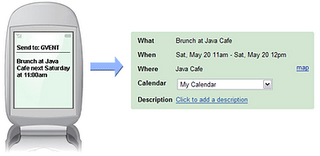
    Let’s say I want to meet a friend for lunch tomorrow. I simply send a text message to GVENT (48368) with a message “Lunch with Bill at The Point tomorrow noon”. The text message gets sent to Google and put in your calendar. When the appointment is put on your calendar, you receive a text message confirming your appointment.

    There are several ways to construct your message. If you remember “who”, “what”, “when”, and “where” you should have no problems. Only “what” and “when” are required. The message format follows the same rules as the Quick Add feature in Google Calendar.
    The “what” is any text. The event title is created from this.

    “When” is the date and time of your appointment. Leaving the time off makes the appointment an all day event. Using the words “at” or “on” can help Google recognize the when. By default, Google calendar creates one hour appointments. You can optionally specify start and end times or a duration.

    You can add people to the guest list if you include “with” and one or more email addresses.

    Where is also any text following an “at” or “in”.

    Other examples are:

    • Disc golf with Jerry at 6PM
    • Take Cat to Vet Monday 3:00PM
    • National conference 3/15 – 3/20 in Orlando
    • Weekly one-on-one with Jason 10 – 10:30 every Wednesday at Jason’s Office

    I use this feature all the time and absolutely love it when my wife tells me something. I can quickly text to Google Calendar and know it will appear our shared family calendar.

    Here is some helpful reference information from Google how to create SMS text messages that get turned in to appointments.

  • Texting – Part 2

    google-voice-sms

    This show is sponsored by Citrix GotoAssist Express. Try it free for 30 days

    Welcome to part 2 of our 3 part series on texting from Gmail and Google applications. If you haven’t listened to part 1, you can download it from iTunes or listen directly from the Gmail Podcast blog at chuckchat.com.

    In part 1 I showed you how to send free text messages from Gmail chat. Another way is to use Google Voice. Google Voice has several features that make it attractive, including:

    • Publish a single phone number and have it ring your home, work, and mobile phone or any combination based on the caller.
    • Free voice mail with personalized greetings
    • Voice mail automatically converted to text and emailed to you with both the audio file and translated text attached
    • Listen to, or read, your voice mail on your computer or mobile phone
    • Free text messaging

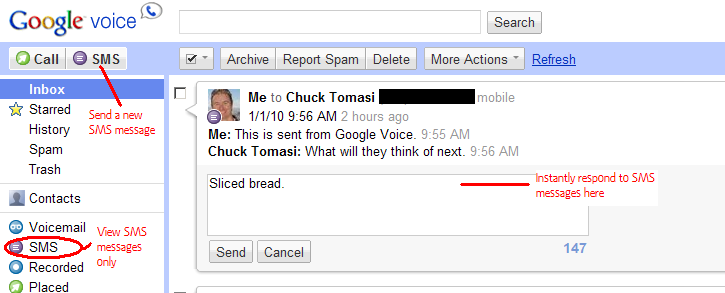
    Begin by signing in to Google Voice using your Gmail account at voice.google.com. At the top, just under the logo, click the SMS button. Begin typing the name of the contact or their phone number. Make sure you have mobile phone numbers associated with the contacts you intend to send text messages. Unlike the Gmail Chat feature, it will not prompt you for the contact if you enter only the number. Similarly, if you enter a name that has no mobile phone number associated in your contacts list, you cannot send a message.

    After you have entered a phone number or contact, type your message and press send. It’s that simple. Managing your Google Voice conversations from the web interface is very similar to Gmail. Responses will show up in your Inbox or you can look at just SMS messages and filter out voice mail by clicking the SMS link on the left. You can reply by typing in the text area just under the conversation and click Send.

    Currently, Google Voice is free and open by invitation only. Contact me if you are interested in trying it out.

  • Texting – Part 1

    gmail-sms-from-chatThis episode is sponsored by GotoAssist Express. Try it free for 30 days.
    Google offers a number of ways to send and receive text messages for free without using a mobile phone. This is part 1 of a 3 part series on using text messages, or SMS, with Gmail and other Google applications.

    Let’s begin with Gmail. Texting from Gmail chat is fairly easy. To do this you will need to enable the Labs feature “Text (SMS) in Chat”. You can find this in the Labs tab in the Settings page.

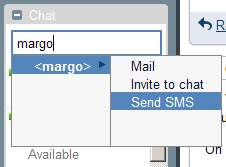
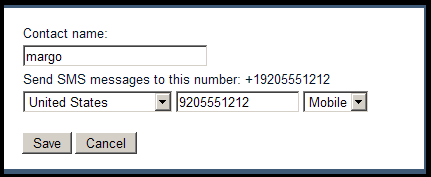
    Once the labs feature is setup, begin by opening the chat window and signing in to chat. Type the name or phone number of the person you want to send a text message to in the “Search, add, or invite” box. If this person is not already in your contacts list, don’t worry. As you type, a window appears under your text with options “Mail, Invite to Chat, and SMS”. If you entered a phone number, only the SMS option will be displayed. Finish entering the text then choose the SMS option and a window appears. In the window, finish filling out the contact information. If you entered a name, provide the phone number, if you entered a phone number then provide a name and click Save. This information will be added to your contacts list for easier reference later.

    gmail-sms-contactWhen Gmail gets done saving the contact information, a window appears at the bottom of the screen – much like a chat window. Type you text message and send it with the Enter key. If the other person responds, you will receive a response in the same window. Gmail makes it as easy to send text messages as it is to chat – and best of all it’s free.
    Another way to send text messages from Gmail is to use the SMS in Chat gadget. This is also a labs feature that works very similar to the Text (SMS) in Chat feature. I don’t recommend using this labs feature. First, it requires the Text (SMS) in Chat feature to be turned on – so why not use that instead? Second, at the time this article was written, the labs feature seems to have a bug in that it prompts you for contact information each time instead of reusing previous entries from the contact database. This creates duplicate entries in the contact database each time you use it.

    Keep in mind that although the text messaging using Google may be free to you, it may not be free to the person receiving or sending replies. Currently, text messages from chat only work with US phones.

    Listener John writes in and asks “Is there a way to set a primary email for a contact that has multiple addresses?”

    While I cannot find a definitive rule or setting to make any particular email address the primary one, my own experience has shown me that mutliple email addresses seem to be ordered by the frequency they are used. The more you use a specific address for a particular person, the more likely that address will appear at the top of the list. If you’ve got information to the contrary, let me know on the blog or drop me an email.

  • Mark Unread From Here

    markunread1This episode is sponsored by GotoAssist. Try it free for 30 days.
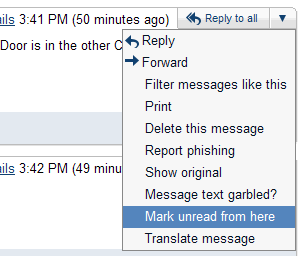
    If you belong to one or more mail lists that have lots of traffic, I recommend the labs feature “Mark Unread From Here”. This handy labs feature allows you to mark messages from a certain point in the conversation as unread.

    Here’s how a typical conversation goes with me. I receive one or more messages, open the conversation, read them, and then archive the information. Later, I find the conversation has re-appeared in my message index with several new messages. If I open the conversation again, it marks all of the new entries as read, however I might not have time to read all of them. I may only read two or three – because I typically get distracted with embedded links to read, watch, or listen to something.

    If I go back to the index, Gmail is going to mark all the messages in that conversation as read, when in fact, I may not have read them all. If I mark the conversation as unread, it marks all messages unread. That’s where the labs feature “Mark Unread From Here” comes in handy.

    Enable this feature in the standard way by going to the Labs tab under Settings. Mark Unread From Here is near the bottom. Click the enable radio button and then choose Save Changes at the bottom of the screen.

    Now when you open a conversation with many unread messages, use the Reply (or Reply To All) button in the upper right corner of any particular message and choose “Mark Unread From Here”. The remaining messages are marked unread, while the previous ones are marked as read. Alternatively, you can use the Expand All link, just above the sponsored links on the right, to show all the messages that may have already been read and collapsed. Using the Mark Unread from Here feature acts like a bookmark for a specific conversation, allowing you to come back later and finish reading the conversation right where you left off.

    One final note, Google engineers are reporting that Gmail mobile now loads 2-3X faster than it did just a few months ago. For iPhone and Android users, the app is up and running in less than 3 seconds.

  • Merge Duplicate Contacts with One Button

    mergecontacts1This episode is sponsored by GotoAssist Express. Try it free for 30 days.
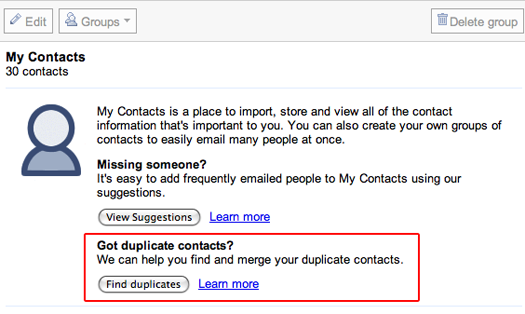
    Gmail has added a feature to the contacts screen to allow you quickly find all duplicate contacts in your contacts database. Until I hit this button, I thought I was pretty good about managing my contact, but I found that out of more than 1600 contacts, I had 163 with more than one entry.

    You’ll find the new magic button by clicking on the Contacts link on the left, then in the main window labeled “My Contacts”, there are two buttons labeled “View Suggestions” and “Find duplicates”. After you click the Find Duplicates button, a list of all contacts with more than one email address is presented. Review the list and uncheck any contacts you want to leave alone. Click the “details” link next to each contact to see which addresses Gmail has found for this person, or use the “expand” link at the top of the list to show the details for all duplicate records. Use the collapse link to shrink them back down to a list of names.

    After you have reviewed the list, click the Merge button to combine the multiple email addresses in to one contact. Verify the operation worked as expected by looking up your contacts and noting that there are now multiple email addresses for that person. Choosing a name when you compose a message is the same as if the contact was not merged. Start typing the name and all available email addresses are displayed.

    If you’ve been considering using Gmail as your central contacts database, this feature makes it easy to keep everything together and then sync it with your phone or other portable device. To find out more about syncing your contacts, search for the term sync on the Gmail blog at chuckchat.com.

    Here’s today’s quick tip – Use the question mark key (?) to see all the shortcut keys Gmail has to offer.

  • Migrating My Email to Gmail

    Fate conspired against me a couple years ago when I hit the limit on Gmail. If you’re not a Gmail veteran, here’s a quick refresher. When Gmail first came out it offered a whopping 1GB of storage for free. This was far larger than the 10MB my ISP was offering at the time. By mid-2007 the capacity was up to 2GB – and still free. Who was I to complain… Until late 2007 when I ran out of space.

    My solution at the time was to start up Mozilla Thunderbird and use IMAP protocol to download all the messages to my local PC, then wipe Gmail clean. Sure it kept the file attachments, but I lost all my labels. I could still search through the archive and rebuild my email in the cloud.

    Sadly (for me), only a few months later, Gmail capacity started shooting up again… 3GB… 4GB… 5GB… 6GB… 7GB… in a matter of months. It figures. Now everytime I want to find something I have to search two places when Gmail is large enough to hold the original 2GB, the 2GB I added since then, and still have plenty of space. But how to get my Thunderbird archive back on to Gmail?

    Enter Ben Shoemate and his wonderful article explaining it all. Ben made it sound so simple to gather up the email and send it off to Gmail. Except I had problems.

    I couldn’t get Gmail to recognize the server on my machine. Long story short, it turned out to be my Windows XP Firewall settings. Although I believed my exception in the port listing did the trick, it did not. I had to completely stop the service in order to make contact between any other machine and port 110 (POP3) on my machine.

    What’s more, once I made contact, I had problems authenticating. Solution: I had to create another account and transfer the email messages (again) from one local IMAP account to another. A little time consuming, but soon I’ll have all my email safely back in Gmail’s hands.

    And if you really don’t believe all your data is safe in the cloud, you can always use Gmail Backup to keep a copy.

    Thanks Ben!

  • Gboard – The Gmail Keyboard

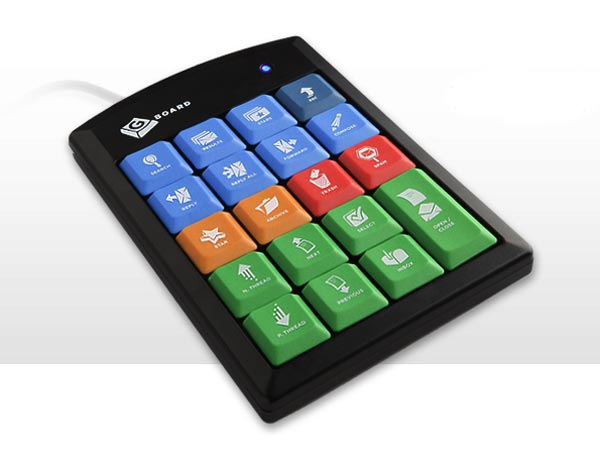
    gboard-gmail-keyboardOK, I recognize that not everyone uses my personal favorite Gmail feature, keyboard shortcuts. For those who would rather reach for a mouse to archive, label, or reply, I offer the Gboard – the keyboard made especially for Gmail users.

    The Gboard reminds me of those numeric keypads you can add if you do a lot of number entry on a laptop (for example.) The Gboard is priced at $19.95. While I don’t have personal experience, I am working on procuring an evaluation unit.

    My first impression is, it’s a bit limited. It offers 19 of the total 69 keyboard shortcuts. I’m not sure if it’s quicker to reach for your mouse or a separate keypad, but my recommendation is that you should just start learning shortcut keys. In a few weeks, you’ll have 19 memorized and still have 20 bucks in your pocket.

  • Default Text Styling and Free Holiday Card

    default-text-style

    This episode is sponsored by GotoAssist Express. Try it FREE for 30 days at http://gotoassist.com/techpodcast
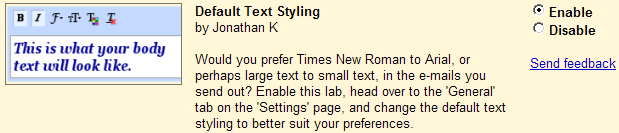
    Want to put a little flair in your email? Want to get away from the standard font that everyone else is using in their Gmail messages? Try the labs feature called Default Text Styling. Like other labs features, you can turn it on by:

    • Clicking the Settings link in the upper right corner
    • Click the Labs tab.
    • Scroll down the list until you find Default Text Styling and click “Enable” next to it
    • At the bottom of the screen, click “Save Changes”

    Now you can define your default text style under the General tab in the setting screen. It may take a few minutes for the feature to show up if you are using offline mail. If you want to remove the formatting and go back to the default style, use the rightmost icon that looks like a capital T with a red x.
    When you compose new a new message, your default text style will be set to the color, font, and size you setup in the General Settings. Your signature will not use the default style if you have one setup.

    Here’s today’s quick tip. Send a free holiday greeting card through the U.S. Postal Service and let Google pay for it. You can choose from six different styles and send one card with a personalized message to anyone with a U.S. Postal Address for free. Find out more at http://services.google.com/fb/forms/googleholidaycard.

    A couple quick updates before I go. First, the Gmail website has been redesigned. We’ve cleaned things up and modernized. There are still a few tweaks to make, but I think you’ll find the interface quite familiar. Second, if you’re a WordPress user or are thinking about starting your own blog, watch for the book “Sams Teach Yourself WordPress in 10 Minutes” written by me and my Technorama co-host Kreg Steppe. The book won’t be out until March 2010, but you can pre-order now at Amazon.com.

  • Offline Attachments and Green Robots

    Sponsored by GotoAssist. Try it free for 30 days

    Beginning November 22, 2009, Gmail has added the ability to add attachments to email while in offline mode. This was not previously possible and frustrated many people who use offline Gmail. Now email attachments will behave just as you would expect whether you are online or offline, with the exception that you cannot do inline images when you are in offline mode.

    When Gmail sends your mail, it goes through the outbox whether you are offline or online. This allows Gmail to capture all the attachments. If you are online, your message is sent immediately. If you are offline, it sits in the outbox until you are reconnected. Oddly, I would have expected this behavior already since I am so used to it in Outlook.

    To get started with offline access:
    1. Go to Settings and click on the Labs Tab.
    2. Select Enable next to the Offline Gmail option
    3. Click Save Changes at the bottom of the page
    4. Your browser will then restart and you should see an offline link represented as an icon of a white checkmark in a green circle, next to your name in the upper right corner of Gmail. Click the offline icon to start the setup process.

    Listen to the Gmail Podcast from March 1st and November 8th 2009 for additional information on setting up Offline Gmail and selecting specific messages to synchronize..

    Here’s today’s quick tip. If you have friends with Android phones, enable the labs feature Green Robot to identify in your chat listing which people are online, but perhaps not always available because their Android phone has them automatically logged in. Android users will show up as a green robot indicating they are ready, but not ready-ready.

  • More Storage

    This episode is sponsored by GotoAssist Express. Try it free for 30 days!

    This week, Google announced they have slashed the pricing on additional storage. If you’ve been using Gmail for a long time, you probably remember when it was introduced with 1GB of storage. Compared to the 10MB my ISP was giving me at the time, 1GB was a comfortable upgrade – and it was free. Later, Gmail increased the storage to 2GB where it stayed for quite some time. A couple years back I ran out of space so I archived everything to my local PC and wiped it off Gmail to start over. If I had only waited a few more months I would still have all my original email online. Today Gmail offers in excess of 7GB of free storage, yet some people still manage to fill up their mailbox.

    This week Gmail lowered their pricing on additional storage. You can purchase an additional 20GB for only $5 (US) per year. Additional increments are also available at similar pricing.

    What’s nice is that the storage is shared between Gmail andPicasa, their online photo manager, as well. Picasa defaults to 1GB of storage so the extra space for your photos makes a nice upgrade at a reasonable price.