Category: Gmail Blog

  • Google Sync

    Try GotoAssist Express free for 30 days, by going to gotoassist.com/techpodcast

    Google Sync can help keep your iPhone/iPod Touch, Windows Mobile, BlackBerry, and Symbian smartphone stay synchronized with calendar, contacts, and email on your Google account wirelessly.

    This is more commonly known as “push technology” because you don’t have to manually request your calendar, contacts, or email be updated. Most people find push technology more convenient. The advantage is that you get your updates sent automatically to the native apps on your mobile device and those are synced with your Google account information. The downside is that you cannot take advantage of many of the features of the web application such as labels, stars, and archiving in Gmail, for example.

    Setting up Google Sync was pretty basic. I was able to follow the instructions online and get my iPod Touch setup to sync my email and calendar items in a matter of minutes. The key is to setup the account as a Microsoft Exchange account. Google Sync uses the Microsoft ActiveSync technology to do the heavy lifting. Generally, I still use the web interface or the Gmail applet on my iPod Touch so I can use the cool extras to manage my email. The place where Google Sync has made a big difference for me is the calendar. It sure is handy to have my Google calendar items, which are generally personal, right next to my work items all in the palm of my hand. Now when someone asks me “Are you available next Tuesday?” I have everything I need in one place.

    It should be noted that the iPhone and iPod Touch require OS v3.0 or higher.

    You can find step-by-step instructions for your mobile device at m.google.com/sync.

    Here’s today’s quick tip. You might want to check out the labs feature “Hide Read Labels” if you want to have a little less clutter on the left side of you screen in the labels tab. If you turn on this labs feature, it will only show you the labels that have unread messages in them, in essence, hiding all the labels where the messages are all read. This is particularly useful if you are one of those people who use labels as a to-do list. For example, saving unread messages in a label called “Weekend” will have this folder displayed until you’ve read all the messages, in effect, checking them off your to-do list, then the list goes to hidden. Just another handy way to keep the relevant information at your fingertips while keeping the interface clean.

  • Gmail Backup

    Welcome the Gmail Podcast, a collection short hints, tips, and tricks to help you get more from your Gmail account. I’m your host, Chuck Tomasi.

    Try GotoAssist free for 30 days at gotoassist.com/podcast

    This past week I came across a really neat application called “Gmail Backup”. The name says it all. All you do is download and install the tool, provide your Gmail credentials, point it at a folder on your system, and click the Backup button. It takes care of the rest. And best of all, it’s free.

    There’s a Windows command line and GUI vesion, a command line and GUI Linux version, and a Mac command line version only. I have heard rumors that a GUI version for the Mac is in the works so stay tuned to the Gmail Podcast for more information. Running from the command line actually makes sense if you want to schedule regular backups from a script. See the documentation on their website at www.gmail-backup.com.

    Regardless of your platform, you will need Gmail IMAP enabled. You’ll find this in the settings under the “Forwarding and POP/IMAP” tab. For Linux users, you will need the wxPython (http://wxpython.org) packages installed. It also requires the ctypes module; which should be included in the Python 2.5 distribution. For earlier versions of Python you can find the package in the repositories of your distribution.

    I downloaded and installed the Windows XP version and was up and running fairly quickly. I created a new folder under “My Documents” called “My Gmail Backup”. Feel free to put the folder where you like or create multiple fodlers if you plan on backing up multiple accounts. You can even do this after you start the application. Currently my mailbox is using approximately 1.6GB of storage on Gmail and it took a little over an hour to backup the first 600MB before I stopped. I had to relocate which would have interrupted my Internet connection. When I started it back up again, Gmail Backup recognized how much work it had done, took a few minutes to scan past the 9700 messages already backed up and resumed where it left off.

    Other parameters availble in the application allow you to set a “Before date” to backup all messages before a given date, and all message since a given date. On first invokation, both dates are the same so it backs up all messages. As it retrieves the messages, they are stored in individual “eml” files in your backup directory. The ELM files can be opened by Microsoft Outlook, Outlook Express, Internet Explorer, IncrediMail, Thunderbird, and for Mac users, Entourage, and of course Apple’s Mail program. EML files are nice because not only do they preserve the times, sender, and other standard information, they also contain any file attachments that were on the files on Gmail. And yes, Gmail Backup also remembers your labels that you applied to the messages. They are saved in a mapping file called “labels.txt”, although you may run in to problems if your labels contain non-alphanumeric characters (a-z and 0-9).

    And what would a backup program be without a restore feature? Gmail Backup allows you to re-upload all or part of your backup. If you’ve got multiple Gmail accounts or host your own domain from Gmail, you can backup messages from one account, and restore them to another account simply by providing the right credentials.

    Again, I recommend visiting the website for full documentation, FAQs, and active forums at www.gmail-backup.com

    For what it’s worth, there are other ways to backup your Gmail account, including Thunderbird (which has a limitation of 64,000 messages), Fetchmail (a little more technically involved and requires Cygwin to be installed), or Getmail (for you Linux users). I just found Gmail Backup to be quick and easy to use.

    Here’s today’s quick tip… If you receive an email with a subject something like “Warning code: VX2G99AAJ”, just report it as spam, a phishing attempt, or delete it. The message body says it’s from “The Gmail Team”, however the message header says something quite differently. This is just an attempt to get your user information. Don’t even bother opening the message.
    That’s all for this time… Comments, suggestions, or questions can be sent to gpodcast@gmail.com or check the website for full information and archives of all previous Gmail tips at chuckchat.com/gmail. I have no affiliation with Google other than as a satisfied Gmail user. Thanks to you for listening, and don’t forget to write.

  • Integrated Gmail

    Try gotoassist free for 30 days by going to gotoassist.com/podcast

    OK Google users, listen up. If you’re like me and use Gmail, Google Reader, Calendar, and many more apps, you likely find yourself wishing there was one single place to see and manage all that information rather than jumping between many different interfaces and applications.
    Even though Google hasn’t come up with a unified interface, there’s a Firefox add-on that can do it for you called Integrated Gmail. It allows you to pull together your Google applications plus third party sites in the Gmail interface.

    Listener John writes in that he’s got a netbook and is looking for something to offer him more screen real estate to see his conversation index and messages. I didn’t realize it at first, but Integrated Gmail add-on also offers screen controls to expand the screen usage on the top and left of the screen. Just look for the little green arrows. Whether you are a netbook user or just looking for a page to view all your Google apps, Integrated Gmail is a good choice.
    Here’s today’s Quick Tip – Hey Google Voice users, Gmail now has a labs feature that allows you play your voice mail messages right in Gmail. Google Voice is a service that allows people to call one number and ring each of your multiple phones. If you are already a Google Voice user, you are used to getting your voice mail notifications as email. After someone leaves a voice message, you get an email with a transcript of the message (with varying degrees of accuracy) and a link to play the message. Previously, if you used the link it would take you to a different page to play it. By using the labs feature, you can play the message right from within Gmail. To use it, go to Settings, then click on the Labs tab, look for Google Voice player, select enable, and save you changes. Now when you get a message, the player will appear right below the message in Gmail.

  • Contact Chooser

    contact-chooserTry GotoAssist free for 30 days

    Have you found yourself trying to send a message to someone and you cannot remember their last name? John? John? What was John’s last name? OK, John’s not your closest friend and you don’t send him email all the time. In fact, you don’t even know if you added him to your Gmail contacts, you may have only sent a message to his email address and never used his full name. You start typing j-o-h-n in the To: field and auto-complete comes up with the people who have John in their name and you don’t find the person you are looking for. Was he even in the hundreds of contacts you have listed?

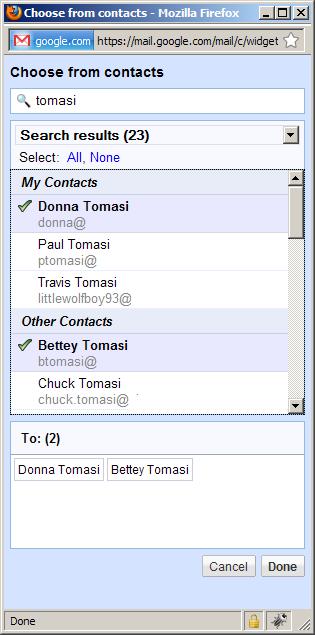
    Now I have to admit, there are times when I would love to just browse my contacts list, or type a few characters, or even just poke around the contact groups I setup to get a better idea where John might be hiding. The latest update to Gmail answers this question. Google has placed a link on the “To”, “Cc”, and “Bcc” labels that bring up a contact chooser (see the image.) This works similar to the buttons next to the fields in Microsoft Outlook, only better.

    If you type in text in the area marked “Search my contacts”, Gmail will start filtering out your people. In my case, I typed “tomasi” and got several of my family members. Now I can just click and choose them. I can also narrow down the search to my groups by using the drop down list just below.

    This is a nice addition to the auto-complete feature if you’re really not sure how to spell someone’s name or want to quickly select all the Tomasis at once.

    Here’s today’s quick tip. Listener John wrote in about the Goto Label feature. He says:

    “One of my computers is a netbook, so the space saving tips catch my ear.
    The “G” “L” combination to go to a label sounded like a great feature, but there is no drop down reminder. So I have to remember the name of the label.
    My solution – kind of clunky – was to rename my labels so they all start with “L-“
    Now when I enter “G” “L” and then “L”, I see a list of my labels.”

    Thanks for the tip John. I generally use a dozen or so labels frequently; then there are some obscure ones that may go unused for months and I don’t recall their names or functions. Your suggestion seems to address that nicely. If you’ve got an tip about Gmail, send it along. I’d love to hear from you.

    That’s all for this time… Comments, suggestions, or questions can be sent to gpodcast@gmail.com or check the website for full information and archives of all previous Gmail tips at chuckchat.com/gmail. I have no affiliation with Google other than as a satisfied Gmail user. Thanks to you for listening, and don’t forget to write.

  • Enhanced Gmail Plugin for Blackberry

    This episode is sponsored by GotoAssist.com. Try it free for 30 days.

    A few days ago my mobile phone at work was replaced with a Blackberry Curve. I’ve used many smartphones in the past, but this was my first Blackberry. I am still learning my way around the interface, applications, and their options, and I have to admit – I can see the attraction to this platform. It was only a couple days later that my Technorama co-host, Kreg Steppe, let me know that there is a new plugin available for the Blackberry that lets your standard Blackberry mail app work better with Gmail. Until recently you could send and receive email using the standard IMAP protocol, but that fell far short of the functionality that many Gmail users want including labels, stars, and more – causing them to download a separate app to manage their Gmail. Well, those days are over.

    With the Enhanced Gmail plugin for Blackberry, you can: Add and remove labels and stars from your messages, report spam, perform local and remote searches, archive mail messages, view related messages as a single conversation (also known as threads in other mail programs), and much more. The plugin requires Blackberry Device Software version 4.5 or greater and Google Mail Integration with the Blackberry service. Most of you probably already have this if you have a recent Blackberry.

    Begin by pointing your Blackberry web browser to blackberry.com/gmail. Be sure to follow the instructions carefully. If you have an existing Blackberry mail setup to Gmail, you will need to remove it and recreate it.

    It should also be noted that mail synchronization is one way, from the Blackberry device to Gmail. Many changes that happen on the Gmail web interface are not reflected on the Blackberry. To find out more, visit the link to the Blackberry forums, found in the show notes on the Gmail Podcast website.

    http://supportforums.blackberry.com/rim/board/message?board.id=Hello&message.id=198#M198

    Finally, if you use the Blackberry Storm, this functionality is built in to version 2.0.0.13 so you won’t need to download this plugin. I don’t yet know if the enhanced Gmail functionality will be a standard feature of other Blackberry phones in the future. Stay tuned to the Gmail Podcast or visit the website for updates.

    Here’s today’s quick tip. Gmail now has a feature to email your task list. From the Tasks window, choose the Actions menu, and select “Email Task List”. A new message is composed with all the items in that list shown as bullet items and completed items are crossed off. This is a good way to show project status, or let someone know how busy you are and why you haven’t gotten to something they asked you for. Of course, you’ll want to make sure at least a few things are crossed off so you can backup your claims of being so busy.

    Finally, Gmail is rolling out the ability to easily import email and contacts from other email systems like AOL, Yahoo, and Hotmail. This feature was announced to new users in June of 2009 and existing users would be able to do this later. Well, now it’s later. if you want a refresher on the feature and how to access it, you can fid it on the Gmail Podcast recorded June 14, 2009. The short answer is that it is in the settings under accounts.

    That’s all for this time… Comments, suggestions, or questions can be sent to gpodcast@gmail.com or check the website for full information and archives of all previous Gmail tips at chuckchat.com/gmail. I have no affiliation with Google other than as a satisfied Gmail user. Special thanks to long time listener and Technorama co-host Kreg Steppe for pointing me to the Blackberry plugin. Thanks to you for listening, and don’t forget to write.

  • Auto Unsubscribe

    This episode is sponsored by GotoAssist – try it free for 30 days.

    Have you ever wondered what to do with those messages that you get because you are on someone’s mail list? You don’t read them regularly (or at all), but you just don’t see a quick link, or you are not ambitious enough to unsubscribe. Well the geniouses at Google have an answer for that now too.

    The feature is called auto-unsubscribe. The feature is quite simple to use. Just open the message like you normally would, and click the “Report Spam” button. If the message is recognized as a mailing list, Gmail will present a popup window with an option to unsubscribe or identify the message as actual spam. The main difference is that marking it as spam won’t stop the sender from sending more messages in the future.

    If you click the option to unsubscribe, Gmail will send back an Unsubscribe request to the list. This request could take up to several days to process, but I found it to be pretty reliable. I read about this feature several weeks ago, but it took a while before it started working on my account.

    Here’s today’s quick tip… actually two tips regarding labels. The first is my recommendation to enable the labs feature called Goto Labels. Begin by enabling keyboard shortcuts in your general settings, then enable to labs feature Goto Labels. Now you can use the keyboard shortcut ‘g’ then ‘l’ (letter L) which brings up a quick popup window allowing you to type the label. Like addresses, quick typeahead is available. Using this, combined with the condensed screen options mentioned a few shows ago, this gives you rapid access to your labeled messages while maximizing your screen real estate. Which is very important if you have a smaller screen such as those found on netbook models of portable computers.

    The screen resolution of many netbooks is 1024×600 which can be a little constraining for people used to much higher resolutions on desktop or full size laptop machines. When you start applying and displaying one or more labels, you lose the effectiveness of the subject line. Fear not, there is a labs feature for this growing problem also. The feature is called “Hide Labels” and it allows you to turn off labels on the conversation index without affecting the functionality of the labels themselves, like the Goto Labels labs feature just mentioned. Now you can use your netbook and enjoy Gmail even more with the Hide Labels labs feature.

    Finally, it was discovered this week that Gmail has surpassed AOL mail and moved in to third place for online mail services with 37 million users, right behind Hotmail with 47 million, and Yahoo with a commanding lead 106 million unique visitors.

    That’s all for this time… Comments, suggestions, or questions can be sent to gpodcast@gmail.com or check the website for full information and archives of all previous Gmail tips at chuckchat.com/gmail. I have no affiliation with Google other than as a satisfied Gmail user. Special thanks to listener Scott Reynolds for his tip on the Goto Labels labs feature. Thanks to you for listening, and don’t forget to write.

  • Invite Others

    This episode is sponsored by GotoAssist.com. Try it free for 30 days.

    This past week I found myself trying to use a website that manages meeting invitations and keeps track of recipients. Unfortunately, I found out that the email sent from this site is blocked by many firewall and spam filters meaning my invitation did not reach all the people I had hoped.

    It was about that time that I discovered that Gmail has a way to create an event invitation. You can find it just above the text box for your message body when you compose a new email.

    Begin by composing a message as you normally would by entering names in the “To” field and enter a subject. Next, click on the link just below the subject labeled “Add event notification” – several additional boxes will appear allowing you to provide an event title, location, and starting and ending date and time.

    You can place more details, such as a meeting agenda, in the body of the message. When you’re done, just click Send as you normally would.

    If you did not intend to use the event invitation, use the “remove” link just to the right of the event name.

    If your invitation is received by an Outlook user, for example, they see it like any other meeting invitation and click on the “Accept” or “Decline” button. If another Gmail user gets the invitation, they can click on one of the options “Yes”, “No”, or “Maybe” next to the question if they are going.

    As the meeting coordinator you can easily click on “Calendar” at the top of your Gmail screen, locate the event, and see how many people have responded and what their response was. This is important when you need to know whether to bring one or two plates of cookies.

    I found this much more straight forward to use than the website I had previously tried. There are some things to keep in mind when sending invites. First, if you send an email to 500 or more people, or you send a large number of undeliverable messages, you could find your Gmail account temporarily disabled. For those using a POP or IMAP mail client such as Outlook Express, Thunderbird, or Mac Mail, your sending limit is 100 recipients. If this happens, your account should be re-enabled within 24 hours.

    Also, if you need to communicate with a large number of people, you might want to consider a Google Group. Creation and setup of Google Groups is a bit beyond the scope of this podcast. I found that while Google Groups are great for shared discussions it can be tricky to use them to send meeting invites since the responses either go back to the entire group, or appear in the event’s attendees list with the group name instead of the individual who replied.

    Unfortunately, I am in a situation where I want to hand off the meeting invitations to someone else and there doesn’t seem to be a way to share Gmail contacts with a standard or hosted account at this time. The best I can do is export my contacts list and have the new facilitator import it.

    Quick Tip:
    Show pictures from people you know. Gmail will now show pictures in email from people you know. If you have sent that person email at least twice before, the images will automatically be inserted in to the message – this very handy for those family photos, holiday shots, or newborn grandchild. You can also click on the link “Display images below” or “Always display images from (current sender)” if the images are not automatically added. The reason they were not displayed before was done as a security precaution from spammers. Gmail would not display images unless you clicked one of those links and that was annoying. Thank you Google for making image viewing a little simpler.

  • Password Reset by SMS

    This show is sponsored by GotoAssist.com – Try it FREE for 30 days!

    Let’s face it, sooner or later we all forget a password. There are just so many of them to keep track of. Gmail has made this a little easier by allowing you to recover your password via text message.

    Begin by going to http://www.google.com/accounts. Under the personal settings, you should see a section labeled “Security”. Click on the link that says “Change password recovery options”. You’ll need to provide your Google Account credentials one more time to verify your account.

    Once that is done, you can add email addresses to send a reset link, or set a mobile phone number to send a password reset code via text message. To this, click on the link under the section “SMS” labeled “Add a mobile phone number”. Choose your country and enter the mobile number you wish to send the text message to and make sure to check the checkbox labeled “Use this phone number for password recovery via text message”. Finally, click the “Save” button at the bottom.

    Now if you lose or forget your password, click on the link labeled “Can’t access your account?” in the login box of any Google application. On the right, look for the article labeled “I forgot my password” and click it. This link is also available on the bottom of the page. You will then be taken to the password recovery page where you first need to provide your username. In my case, I entered chuck.tomasi and clicked Submit. You’ll need to enter the text in the captcha page, one of those graphics with squiggly letters. I’ll admit, sometimes these are a little hard to read and I often have to enter more than one.

    Once you’ve passed that test, you will be given several options to reset your password based on the account options you chose. If you set an alternate email address, you will receive an email to initiate the password reset process. If you setup the SMS option, you’ll get a text message with a recovery code.

    Here’s today’s quick tip. Fight phishing with new labs feature. If you are unfamiliar with the term, Phishing, with a “ph” is a term used for nefarious email that tries to lure you to a website that impersonates another in order to get secure information from you. The most notable of these are eBay and PayPal. For example, some Internet villain will send you a message that looks like it is from PayPal and take you to a site that looks like PayPal, only to get your login and password and exploit your real account. This Labs feature in Gmail verifies that an email that says it’s from eBay or PayPal actually is from one of those sources – making it more trustworthy. To use this, go to the Labs tab in Settings, turn on the feature called “Authentication Icon for verified senders”. Now when you see an email from one of these sources, a little gold key appears next to the sender’s name in the message. This currently only works for eBay and PayPal, but I’m sure Google will be extending this functionality in the future.

    Finally, Google has promoted their first labs feature to a full fledged feature. Tasks is now a permanent fixture on the main page for all Gmail users. This labs feature was so successful that everyone is now able to use it by clicking the Tasks link on the left. While there is still no syncing with other systems, I expect more functionality in Tasks in the future. After all, they already implemented my suggestion to move tasks between different tasks lists. Thank you Google!

  • No Longer Beta

    This episode is sponsored by GotoAssist.com. Try it free for 30 days.

    As of July 7, 2009 Gmail is no longer a beta product. After five years, many jokes, and even questions regarding the nature of beta software, Google has dropped the beta tag not only from Gmail, but from the other Google Apps as well, including Calendar, Docs, and Talk.

    I’m not sure what the trigger was, or what, if anything has changed in the beta to non-beta release. Traditionally in a beta release of software, the publisher releases to a small community of people to test the application and provide feedback on bugs or enhancements. If you have been using Gmail before February 7, 2007 you’ll remember that the limited audience part was dealt with by invitations. You could only start using Gmail if an existing user invited you. However this was somewhat of a gray area because nobody ever seemed to run out of invitations, therefore you could invite people as much as you like. So what was the point?

    Once the invitations were dropped and the product was opened to the public, many thought the beta moniker would also be dropped. Not so. After the development of many of the other features and tweaks including labs, offline capabilities, mobile apps, and dozens of others, many thought the beta tag would be wiped away, but it persisted. Even the support channels seem to be the same as they were in the beta world.

    So we are left to wonder what caused Google to finally dump the beta tag. Was it constant harassment and joking from the public? I doubt it. Some say it was reluctance from the corporate world to move their enterprise to products that still carry the beta label. I’m not convinced of that argument either. According to the official Gmail Blog there is no real reason, only a lot of speak about WHAT they have done, not WHY they did it. And now that they’ve left the beta world, what benefit is it to us, the Gmail users?

    What’s more interesting is they created a labs feature called “Back to Beta”. If you to go Settings, then Labs, and enable this you’ll get the “beta” tag back on the Gmail graphic. The IT voice inside my head tells me to be cautious of turning this on. I suspect it will preclude you from recognizing new features that come out in the future because you chose to stay in the beta world with the “back to Beta” plugin.

    We were all scratching our heads why the product remained in beta for so long and without decent feedback from Google, we are confused even further on what the difference is. Had this been Microsoft, Apple, or some other major software company, an announcement and perhaps ceremony would have been made as their beta product makes it to the public release state. What happened Google?

    As a footnote, I use one of the themes found in Gmail. I noticed that I still had the beta tag some 24 hours later. I discovered that I needed to change my theme back to default and then back to my normal theme and the beta tag was gone.

    Here’s today’s quick tip: Actually, it’s more of an FYI. As of late June 2009, Gmail upgraded the maximum size of an attachment from 20MB to 25MB. Be aware that you may not be able to send email attachments that large if the recipient is on another mail system. If your message bounces, you might want to ask them to start using Gmail.

    That’s all for this time… Comments, suggestions, or questions can be sent to gpodcast@gmail.com or check the website for full information and archives of all previous Gmail tips at chuckchat.com. I have no affiliation with Google other than as a satisfied Gmail user. Thanks for listening, and don’t forget to write.

  • Drag and Drop Labels

    This show is sponsored by GotoAssist.com – try it FREE for 30 days!

    Gmail has made some significant changes to the way you label and store conversations. They have now made labels work more like folders in more conventional mail applications by adding drag-and-drop actions. Once again, Google has impressed me with their web programming savvy.

    Before getting started on the drag and drop feature, you should be aware that your labels have moved and are displayed a bit differently. Labels are no longer in their own little side window, but are now parked right underneath the standard system folders Inbox, Trash, Spam, and so on. You may also notice that all your labels are not displayed as they once were. Only the most used labels are displayed by default. If you don’t like this, click on the little down arrow just below the first few and click “Settings at the top of the new window. You can also get to this location by going in to Gmail Settings and click “Labels”.

    In this redesigned Labels settings screen, you can show or hide any number of the standard folders or your labels quickly and easily. Go ahead and give it a try. You could save yourself a lot of screen real estate. If you don’t like it, just turn them back on.

    I should point out that if you used the “Right Side Folders” labs feature, that it no longer functions. It is the first of the Gmail Labs features to be retired. A pity, I kind of liked having labels and chat on the right of the screen.

    OK, now that you’ve got your labels and folders displayed the way you like, it’s time to try that drag and drop feature. You can drag any conversation on to a label or any label on to a conversation. To grab the conversation, click on the dotted area just to the left of the checkbox. Your mouse may change to the shape of a hand with all fingers extended, as opposed to the standard link cursor with just the index finger pointed out. Once you have the message, continue to hold the mouse button and drag the message to the desire label. This moves the message to that label and archives it, effectively treating it like an operation of moving a message into a folder.

    If you would rather just apply a label and leave the message in the inbox, place your cursor over the desired label and click, then drag the label to the specific message shown on the conversation index. It’s really that simple. Remember, if the label you are looking for is not in the list, try the down arrow to show them all.

    I have to admit, I’m very impressed with this new way of doings from a developer’s perspective and I’m sure most of you use your mouse a lot to click on that checkbox, conversation, or label. However, I’ve found that I can still process messages many times faster with keyboard shortcuts, so aside from cleaning up my screen by hiding most of the labels and folders, I won’t be using drag and drop too much.

    If you’re not familiar with the keyboard shortcuts, have a listen to one of the first Gmail Podcasts I did in January 2006 to learn things like “l”, then start typing the first few letters of a label, or using “g” and “i” to go to the inbox quickly.