Category: Gmail Blog

  • Mark Unread From Here

    markunread1This episode is sponsored by GotoAssist. Try it free for 30 days.

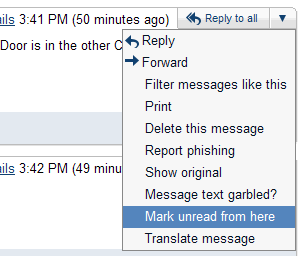
    If you belong to one or more mail lists that have lots of traffic, I recommend the labs feature “Mark Unread From Here”. This handy labs feature allows you to mark messages from a certain point in the conversation as unread.

    Here’s how a typical conversation goes with me. I receive one or more messages, open the conversation, read them, and then archive the information. Later, I find the conversation has re-appeared in my message index with several new messages. If I open the conversation again, it marks all of the new entries as read, however I might not have time to read all of them. I may only read two or three – because I typically get distracted with embedded links to read, watch, or listen to something.

    If I go back to the index, Gmail is going to mark all the messages in that conversation as read, when in fact, I may not have read them all. If I mark the conversation as unread, it marks all messages unread. That’s where the labs feature “Mark Unread From Here” comes in handy.

    Enable this feature in the standard way by going to the Labs tab under Settings. Mark Unread From Here is near the bottom. Click the enable radio button and then choose Save Changes at the bottom of the screen.

    Now when you open a conversation with many unread messages, use the Reply (or Reply To All) button in the upper right corner of any particular message and choose “Mark Unread From Here”. The remaining messages are marked unread, while the previous ones are marked as read. Alternatively, you can use the Expand All link, just above the sponsored links on the right, to show all the messages that may have already been read and collapsed. Using the Mark Unread from Here feature acts like a bookmark for a specific conversation, allowing you to come back later and finish reading the conversation right where you left off.

    One final note, Google engineers are reporting that Gmail mobile now loads 2-3X faster than it did just a few months ago. For iPhone and Android users, the app is up and running in less than 3 seconds.

  • Merge Duplicate Contacts with One Button

    mergecontacts1This episode is sponsored by GotoAssist Express. Try it free for 30 days.
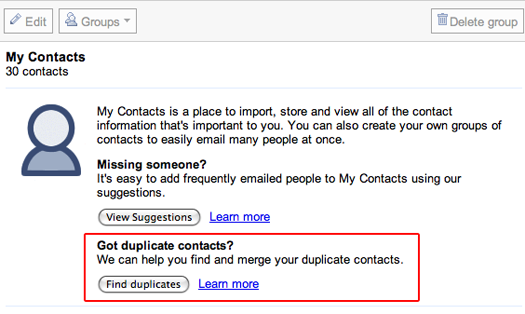
    Gmail has added a feature to the contacts screen to allow you quickly find all duplicate contacts in your contacts database. Until I hit this button, I thought I was pretty good about managing my contact, but I found that out of more than 1600 contacts, I had 163 with more than one entry.

    You’ll find the new magic button by clicking on the Contacts link on the left, then in the main window labeled “My Contacts”, there are two buttons labeled “View Suggestions” and “Find duplicates”. After you click the Find Duplicates button, a list of all contacts with more than one email address is presented. Review the list and uncheck any contacts you want to leave alone. Click the “details” link next to each contact to see which addresses Gmail has found for this person, or use the “expand” link at the top of the list to show the details for all duplicate records. Use the collapse link to shrink them back down to a list of names.

    After you have reviewed the list, click the Merge button to combine the multiple email addresses in to one contact. Verify the operation worked as expected by looking up your contacts and noting that there are now multiple email addresses for that person. Choosing a name when you compose a message is the same as if the contact was not merged. Start typing the name and all available email addresses are displayed.

    If you’ve been considering using Gmail as your central contacts database, this feature makes it easy to keep everything together and then sync it with your phone or other portable device. To find out more about syncing your contacts, search for the term sync on the Gmail blog at chuckchat.com.

    Here’s today’s quick tip – Use the question mark key (?) to see all the shortcut keys Gmail has to offer.

  • Migrating My Email to Gmail

    Fate conspired against me a couple years ago when I hit the limit on Gmail. If you’re not a Gmail veteran, here’s a quick refresher. When Gmail first came out it offered a whopping 1GB of storage for free. This was far larger than the 10MB my ISP was offering at the time. By mid-2007 the capacity was up to 2GB – and still free. Who was I to complain… Until late 2007 when I ran out of space.

    My solution at the time was to start up Mozilla Thunderbird and use IMAP protocol to download all the messages to my local PC, then wipe Gmail clean. Sure it kept the file attachments, but I lost all my labels. I could still search through the archive and rebuild my email in the cloud.

    Sadly (for me), only a few months later, Gmail capacity started shooting up again… 3GB… 4GB… 5GB… 6GB… 7GB… in a matter of months. It figures. Now everytime I want to find something I have to search two places when Gmail is large enough to hold the original 2GB, the 2GB I added since then, and still have plenty of space. But how to get my Thunderbird archive back on to Gmail?

    Enter Ben Shoemate and his wonderful article explaining it all. Ben made it sound so simple to gather up the email and send it off to Gmail. Except I had problems.

    I couldn’t get Gmail to recognize the server on my machine. Long story short, it turned out to be my Windows XP Firewall settings. Although I believed my exception in the port listing did the trick, it did not. I had to completely stop the service in order to make contact between any other machine and port 110 (POP3) on my machine.

    What’s more, once I made contact, I had problems authenticating. Solution: I had to create another account and transfer the email messages (again) from one local IMAP account to another. A little time consuming, but soon I’ll have all my email safely back in Gmail’s hands.

    And if you really don’t believe all your data is safe in the cloud, you can always use Gmail Backup to keep a copy.

    Thanks Ben!

  • Gboard – The Gmail Keyboard

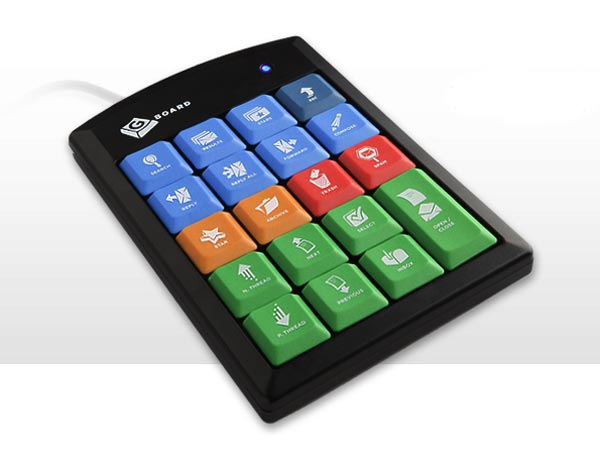
    gboard-gmail-keyboardOK, I recognize that not everyone uses my personal favorite Gmail feature, keyboard shortcuts. For those who would rather reach for a mouse to archive, label, or reply, I offer the Gboard – the keyboard made especially for Gmail users.

    The Gboard reminds me of those numeric keypads you can add if you do a lot of number entry on a laptop (for example.) The Gboard is priced at $19.95. While I don’t have personal experience, I am working on procuring an evaluation unit.

    My first impression is, it’s a bit limited. It offers 19 of the total 69 keyboard shortcuts. I’m not sure if it’s quicker to reach for your mouse or a separate keypad, but my recommendation is that you should just start learning shortcut keys. In a few weeks, you’ll have 19 memorized and still have 20 bucks in your pocket.

  • Default Text Styling and Free Holiday Card

    default-text-style

    This episode is sponsored by GotoAssist Express. Try it FREE for 30 days at http://gotoassist.com/techpodcast
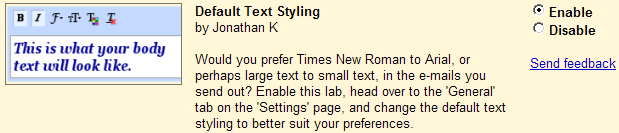
    Want to put a little flair in your email? Want to get away from the standard font that everyone else is using in their Gmail messages? Try the labs feature called Default Text Styling. Like other labs features, you can turn it on by:

    • Clicking the Settings link in the upper right corner
    • Click the Labs tab.
    • Scroll down the list until you find Default Text Styling and click “Enable” next to it
    • At the bottom of the screen, click “Save Changes”

    Now you can define your default text style under the General tab in the setting screen. It may take a few minutes for the feature to show up if you are using offline mail. If you want to remove the formatting and go back to the default style, use the rightmost icon that looks like a capital T with a red x.
    When you compose new a new message, your default text style will be set to the color, font, and size you setup in the General Settings. Your signature will not use the default style if you have one setup.

    Here’s today’s quick tip. Send a free holiday greeting card through the U.S. Postal Service and let Google pay for it. You can choose from six different styles and send one card with a personalized message to anyone with a U.S. Postal Address for free. Find out more at http://services.google.com/fb/forms/googleholidaycard.

    A couple quick updates before I go. First, the Gmail website has been redesigned. We’ve cleaned things up and modernized. There are still a few tweaks to make, but I think you’ll find the interface quite familiar. Second, if you’re a WordPress user or are thinking about starting your own blog, watch for the book “Sams Teach Yourself WordPress in 10 Minutes” written by me and my Technorama co-host Kreg Steppe. The book won’t be out until March 2010, but you can pre-order now at Amazon.com.

  • Offline Attachments and Green Robots

    Sponsored by GotoAssist. Try it free for 30 days

    Beginning November 22, 2009, Gmail has added the ability to add attachments to email while in offline mode. This was not previously possible and frustrated many people who use offline Gmail. Now email attachments will behave just as you would expect whether you are online or offline, with the exception that you cannot do inline images when you are in offline mode.

    When Gmail sends your mail, it goes through the outbox whether you are offline or online. This allows Gmail to capture all the attachments. If you are online, your message is sent immediately. If you are offline, it sits in the outbox until you are reconnected. Oddly, I would have expected this behavior already since I am so used to it in Outlook.

    To get started with offline access:
    1. Go to Settings and click on the Labs Tab.
    2. Select Enable next to the Offline Gmail option
    3. Click Save Changes at the bottom of the page
    4. Your browser will then restart and you should see an offline link represented as an icon of a white checkmark in a green circle, next to your name in the upper right corner of Gmail. Click the offline icon to start the setup process.

    Listen to the Gmail Podcast from March 1st and November 8th 2009 for additional information on setting up Offline Gmail and selecting specific messages to synchronize..

    Here’s today’s quick tip. If you have friends with Android phones, enable the labs feature Green Robot to identify in your chat listing which people are online, but perhaps not always available because their Android phone has them automatically logged in. Android users will show up as a green robot indicating they are ready, but not ready-ready.

  • More Storage

    This episode is sponsored by GotoAssist Express. Try it free for 30 days!
    This week, Google announced they have slashed the pricing on additional storage. If you’ve been using Gmail for a long time, you probably remember when it was introduced with 1GB of storage. Compared to the 10MB my ISP was giving me at the time, 1GB was a comfortable upgrade – and it was free. Later, Gmail increased the storage to 2GB where it stayed for quite some time. A couple years back I ran out of space so I archived everything to my local PC and wiped it off Gmail to start over. If I had only waited a few more months I would still have all my original email online. Today Gmail offers in excess of 7GB of free storage, yet some people still manage to fill up their mailbox.

    This week Gmail lowered their pricing on additional storage. You can purchase an additional 20GB for only $5 (US) per year. Additional increments are also available at similar pricing.

    What’s nice is that the storage is shared between Gmail andPicasa, their online photo manager, as well. Picasa defaults to 1GB of storage so the extra space for your photos makes a nice upgrade at a reasonable price.

  • Selected Offline Messages and Password Tips

    Try gotoassist express free for 30 days by going to gotoassist.com/techpodcast

    Back in January 2009, Gmail came out with a labs feature to let you access your Gmail without an Internet connection. The mail was synchronized when you were connected and then you could access it when you were offline. For frequent travelers, this is a terrific feature. You can learn more about it by listenging to the Gmail Podcast episode simply titled Offline from March 1, 2009.

    The downside of the standard offline mode is that it took a very long time to download the messages or in some cases, all the messages you wanted were not there due to the way the software chooses which messages to download. You might find yourself with plenty of messages from a year ago that have little value, but not all your inbox was synced.

    Gmail Offline now lets you choose which items to download and how far back to get them. This not only saves download time, but also ensures you have relevant information at your fingertips. For example, my Gmail archive is currently around 30,000 messages. It would take a couple hours to download all those messages, and according to the heuristics, I might not get all of the the ones I want.

    To setup selected offline messages, you’ll need to enable the “Offline” labs feature from the Labs tab on the Settings screen. Once that is done, you can use the “Offline” tab from the Settings screen. The “Download Options” section of that screen is where you configure how far back you want to sync your conversations and from which labels. The old method would have defaulted to all conversations from all labels. I setup mine to only go back a month and then fine tune it to first, ignore most labels, then chose some like Inbox that I want all conversations, and finally chose a few fairly active labels where I only need the past month. Once I saved those options, I was able to sync my data in a few minutes and take it on the road.

    This feature really makes Gmail Offline a lot more convenient, but you will need to remember to check the settings from time to time to ensure you add labels as they are needed and remove those that are not.

    Here’s today’s quick tip – Be sure to change your Gmail password at least a couple times a year. There are people on the Internet who make a career out of trying to steal passwords. Some guidelines to follow when choosing a new Gmail password:

    • Make it unique. Don’t make it the same as your other Internet accounts. If someone compromises your Gmail account, they could have access to lots of other information on the Internet. If you have lots of different passwords to remember, I recommend a password vault program like KeePass available from keepass.info. I use because I have over 100 different passwords to remember at home and work.
    • Use a combination of upper case and lower case letters, numbers, and symbols. One common trick is to replace letters with symbols. For example, replace S with a dollar sign, or T with a 7.
    • Don’t use simple words found in the dictionary like “house”, “automobile”, and definitely not “password”.
    • Don’t use personal information that is easy to find such as your street name, dog’s name, and so on.
    • Putting two or more words together with symbols is a good idea. Something like “dino+eggs”, of course replacing some of those letters with numbers or other symbols would make it a much stronger password.
    • Finally, make you password something you are likely to remember. “dino+eggs” would be great if you are a paleontologist, but not necessarily if you are a stock trader.

    You can change your password by going to google.com/accounts, or if you are starting from Gmail, go to settings, click on the “Accounts and import” tab, then look near the bottom for a link labeled “Google Account Settings”.

  • Gmail Notifiers Compared

    Try GotoAssist Express Free for 30 days at http://gotoassist.com/techpodcast

    Using webmail makes sense. It’s easy to access from any computer, and you don’t need to worry about installing and maintaing software, but the drawback is you have to keep a browser window open to know when you have email. The solution to this is to have a small application installed on your machine that monitors your Gmail account and pops up an alert when you get a message.
    For notifiers, I found a few options. Gmail Notifier for Windows from Google, Google Notifier for Mac (same thing for Mac with a slightly different name, also available straight from Google), Gmail Notifier from http://gmailnotifier.com, and Notify for the Mac from Vibealicious (http://vibealicious.com/apps/notify/). I know, the names are all very similar.

    Let’s start with the one that Google provides at http://toolbar.google.com/gmail-helper/notifier_mac.html called the Gmail Notifier. It’s pretty basic. It supports Windows and Mac, sits in your system tray or menu bar, monitors your Gmail account and pops up when you get a message. Pretty simple to download, install, and be up and running to monitor your Gmail account.

    Let’s say you have more than one Gmail account and you chose not to use the multiple account feature on the server to send and receive all your mail in one place. That’s where you might want to use Notify from Vibealicious. It allows you to monitor multiple Gmail accounts at once. It’s only available for Mac, but looks beautiful. It sits in the menu bar with a little icon and number of unread messages next to it. When you click on it, you get a full interface. Like the other tools, Notify is free.

    Finally, there is Gmail Notifier from http://gmailnotifier.com. Like Google’s product, it supports both Windows and Mac. Similar to Vibealicious, it also supports multiple accounts. It runs in the system tray (or Mac menu bar) like Google’s tool, and when you click on it, you can pop up an index of all your accounts and how many unread messages are in each. It has simple controls to let you manage the message index and select messages for deletion, mark them as read, etc. It even supports Google Calendar alerts. I was caught off guard by the default alert which announced in a female voice “Incoming messages” with my laptop volume a little high. And of course, it’s free.

    Of the three, Gmail Notifier from gmailnotifier.com is my pick for feature robustness and platform compatibility.

  • Docs Preview and Got The Wrong Bob

    Welcome the Gmail Podcast, a collection short hints, tips, and tricks to help you get more from your Gmail account. I’m your host, Chuck Tomasi.

    Try GotoAssist Express Free for 30 days at gotoassist.com/techpodcast

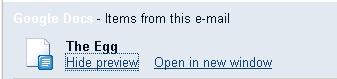
    Let’s say you’re a typical Gmail user and your colleagues send you links to a Google document, either a spreadsheet, presentation, or regular text document. Typically, you would click the link to open the document in Google Docs. That’s a little cumbersome when all you need is a quick peek to get a few facts or figures. That’s where the labs feature called “Docs Previews” comes in handy. Like any labs feature, you can find it under setttings, on the labs tab. Enable it and save your settings. Now when you get a link to a Google doc, an option will appear on the bottom of the message to preview the document, almost as if it were an attachment. Sorry, it doesn’t allow you to preview actual Microsoft document attachments like Excel or Word.

    docs-preview
    Another handy labs feature that can save you from some potential embarrassment is called “Got the wrong Bob?” This feature looks at the patterns of recipient groups you have sent to and tries to prevent you from including the wrong one.
    For example, I normally send email to Kreg S, Victor C, and Steve H, about a surprise party we’re planning for Steve R. Well, it’s Saturday morning and I’m feeling a little tired from a long Karate workout the night before. I start typing and the automatic insert changed the order of my lookups for some reason so my quick typing gets me Kreg S, Victor C, and Steve R! It would be a bit of a problem if the mail went to Steve R instead of Steve H – obviously, it would ruin the surprise. Fortunately, I’ve got “Got the wrong Bob?” feature turnd on and it shows a red message just under the recipient box that says “Did you mean Steve H instead of Steve R?”
    Again, like all other labs features, you can find “Got the wrong Bob?” under the labs tab of the settings screen. As a side note, be aware that the labs feature formerly known as “Suggest More Recipients” has been changed to “Don’t forget Bob”.
    That’s all for this time… Comments, suggestions, or questions can be sent to gpodcast@gmail.com or check the website for full information and archives of all previous Gmail tips at chuckchat.com/gmail. I have no affiliation with Google other than as a satisfied Gmail user. Thank you for listening, and don’t forget to write.