Category: Gmail Blog

  • Report Spam

    gmail-report-spam-1One of the best features about Gmail is its powerful spam detection. Spam is that annoying email that you get from people or organizations you don’t know for products or services that you did not ask for. Some spam is easy to spot such as prescription medicines, or low loan rates. Others are more subtle and the spammers are getting trickier by masquerading as other popular websites such as Facebook and eBay.

    Recent assessments show that over 95% of all email on the Internet today is spam. If you are new to Gmail or just started an email address, you may not be receiving too much now. However, if you’ve had the same email address for a while and use it on other websites for registration, comments, or other ways to get information sent to you, you are opening yourself up to those people who will try to sell you something, known as spammers.

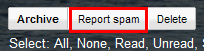
    Fortunately, Gmail stops a large percentage of these annoying email. However, no software is perfect and you may see a spam message in your inbox from time to time. You can simply delete the message which addresses the short term problem, but you run the risk of similar messages appearing again in the future. A better solution is to check one or more spam messages on the conversation index and click the Report Spam button at the top of the conversation index or just click the button if you have already opened a message to find out it is spam. If you have keyboard shortcuts enabled, you can use the hash (#) key. When you mark a message as spam, Gmail removes the message from your inbox and learns from the message you selected to prevent similar messages not only for you, but for all Gmail users.

    If you mistakingly clicked Report Spam on a message, you can click Undo at the top of the screen or use the same button which now reads Not Spam. If you have navigated away from the message you can use the the Spam folder on the left and locate your message. If you don’t see the Spam folder, try clicking “more” just above Contacts.

    Similar to spam messages are phishing messages (spelled with a ph instead of an f). These are messages where someone is trying to get you to login to their site so they can get your credentials for the real site. You can find out more about phishing from the Gmail Podcast released October 14, 2006.

  • Move To

    gmail-move-toTry GotoAssist Express Free for 30 days

    Gmail is full of so many features that sometimes I forget some of the best ones out there. One of those is the Move to button located on the button bar just above the conversation index and any conversation you open. The button works similar in both contexts. It is a combination of the label feature and archive feature rolled in to one. For more information on archiving and labeling, check the White Belt series Gmail Podcast website.

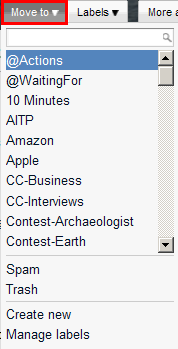
    To use the Move To button from the conversation index, select the conversation or conversations you want to affect then click the Move To button. A list of of your labels appear, much like the Label button. When you select one of these, the conversations you checked are immediately removed from the conversation index and archived with the label you selected.

    The Move To button behaves slightly differently if you are in the conversation reading mode. If you click on the Move To here, the same list of labels appears along with two options that let you move the message directly to spam and trash. These two options are identical to clicking the Spam or Delete buttons on the same button bar. Just like the mode from the conversation index, clicking any existing label will apply that label, archive that conversation, and take you back to the conversation index. Additionally, you can also create new labels from this mode, the same as using the Label feature.

    Because of the way the Move To button attaches one label and archives at the same time, makes it behave more like a traditional folder action than a Gmail label in that it files your conversation in a specific place with one label associated and it’s done. That’s not to say you couldn’t display the conversations with that label, locate your specific one, and attach more labels to it, but that would defeat the purpose of this specialized button.

    Sadly, I cannot find a shortcut key sequence to use this so I often use (the lower case letter) ‘l’ to bring up the label menu, label it, and type ‘y’ to archive it so fast I never think about the Move to feature. As useful as this button is, I rarely use it because it doesn’t have a shortcut key associated with it.

    Gmail-Popout-Chat

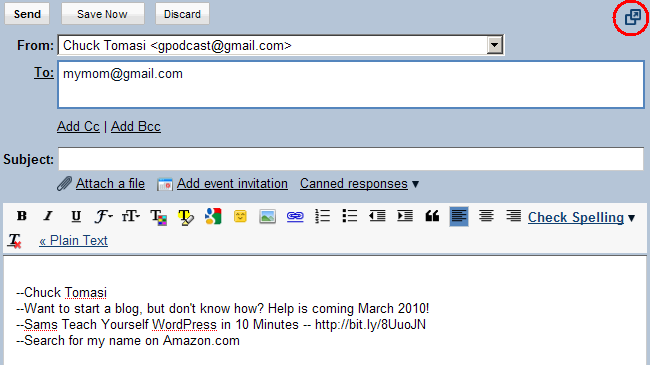
    Here’s a quick update… Google has improved the speed which popout windows appear. Popout windows are available when you are composing, replying, or forwarding messages, along with tasks, chat, and a few other places. For example, normally you see the chat window embedded in the bottom of your Gmail window. If you click the little upward arrow in the label bar with the person’s name, the chat window pops out of that browser window and becomes its own browser window. Previously this was a tedious few seconds. Now almost instantaneous. Thank you Google for continuing to improve our favorite mail program.

    Gmail-Popout-Compose

  • Themes

    Gmail-ThemesThis show is sponsored by Citrix GotoAssist Express. Try it free for 30 days.
    This episode is another in our getting started series with Gmail. This time I’ll cover a way to change the appearance of your Gmail interface without changing the functionality. Gmail calls these themes; other systems might call this “skinning” because you’re putting a new skin or motif to change the application’s cosmetics while leaving the underlying system the same.

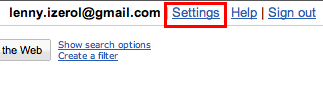
    Changing your theme in Gmail is very simple and quite fun. Begin by logging in to your Gmail account then clicking on the Settings link in the upper right corner. Next, click the Themes tab on the settings window. When you click on one of the themes, Gmail will instantly change the look of your interface. There is no Save Changes button to click on this page. Try as many as you like or stick with the Classic look. You can even choose your own colors.

    Be selective with your theme and inspect all the various things on the conversation index and compose screens. You may find some things don’t contrast well. For example the light graphics at the top of the screen on the Phatasea theme makes it difficult to read the text “Show Search Options” and “Create a filter”.

    Some themes actually change throughout the day. You may be prompted to enter your location when you pick one of the themes. If you are very mobile, you can change your location at the bottom of the themes settings. These dynamic themes change to show the proper sunrise, sunset, and even weather conditions. Yes, I’ve seen it snow in Gmail!

    If you select one of these themes, you’ll see a drop-down menu appear asking for your country or region. Select the country you want, and then enter a city in the field provided. If you don’t enter a city, or enter an invalid one, Gmail will set your location to the capital city of the country you selected. When you’re done, click Save.

    One important footnote, Gmail Themes aren’t yet compatible with all browsers. Themes are only available in Internet Explorer 7.0+, Firefox 2.0+ or Safari 3.0+, and Google Chrome. If you’re using an older version of one of these browsers, you may run in to problems or not see the themes tab at all. Also, themes are not available if you host your own domain on Gmail. The hosting and themes have been out for quite some time, and I haven’t quite figured out why Google hasn’t added themes to this set of Gmail users yet. You can find more information about hosting your own domain on Gmail in the Gmail Podcast archives on the website.

    Quick update – Google has promoted six labs features to full Gmail features and removed five of them. Labs features are features in Gmail that allow you try out cool new things that Google is considering adding to Gmail. They may have errors and they may change, but most are useful to some degree. Again, more information on Labs can be found in the Gmail Podcast archives.

  • Creating and Sending Messages

    Gmail-ComposeThis episode is sponsored by Citrix GotoAssist Express. Try it free for 30 days
    This episode is another in our getting started series with Gmail. Creating and sending email may seem like an self-evident task with any email client. I want to ensure we cover everything to make you effective using Gmail. I’ll cover the basics to get beginners started and you Gmail veterans may still want to listen because I’ll throw in a few extras too.

    Let’s get started by logging in to your Gmail account at https://mail.google.com. In the future, I’ll assume you know how to do that, but since this is still one of the first getting started series, I want to make sure nothing is glossed over.

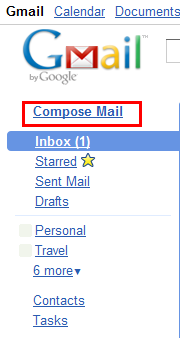
    On the left side, just under the Gmail logo, click the Compose Mail link. Next, enter your recipient’s email address in the To field. If you have a list of contacts setup, you can also start typing the name or address and Gmail will start auto populating the list. If you’re not sure how to spell the name, you can click the To: label and bring up the contact chooser to help narrow down your search. Don’t worry if you don’t have any contacts entered yet, there’s another show on setting up contacts that guides you through that simple process so you don’t have to remember and type an email address every time.

    Enter the subject of your message in the Subject text area, then click your mouse anywhere in the large text area on the screen to create the main body of your message and type away. As you type, Gmail will periodically save your message in the Drafts folder. In the event your browser or computer crash, you won’t lose all your work. Alternatively, you can also use the Save Now button at the top of your message. When you’ve completed your text, click the Send button just above the To field to have Gmail deliver your message. You’ll see a confirmation message at the top to let you know your email has been sent.

    Now for some extras…

    Below the To field are two additional links labeled Add Cc and Add Bcc. Clicking each of these links presents an additional text area for you to enter additional recipients. These are used to include additional people or groups in your message. Cc stands for Carbon Copy. When you enter a recipient here, they are included in the message, however their email client may display the message slightly differently because the message was not directly to them, but rather they were a secondary recipient. Bcc stands for Blind Carbon Copy. Like Cc, you add one or more recipients in the Bcc field, but it has the added advantage that people in the To and Cc fields do not know who is in the Bcc field. An example of this may be that I want to send a message to Dave asking him to explain his behavior in the meeting yesterday, but I’d also like to include his boss Sally without letting Dave know that Sally is included. If I include Sally in the Bcc field, she receives a copy of the message I sent to Dave, but Dave doesn’t know that. Be aware, that some email systems, particularly corporate ones, may block email if your name is in the Bcc field so use it with caution.

    If you want to include a photo, document, or audio file, you can use the link labeled Attach a file just below the Subject field. Clicking this link presents a file browser that lets you navigate and choose a file to attach with your email message. When you’ve selected a file, click the Open button (on Windows machines) or Select (on a Mac) and your file will be uploaded to Google’s server and included as part of your message. If you want to remove the attachment before sending it, just uncheck the checkbox next to the attachment name. To attach more than one file, use the link Attach another file just below the list of file attachments. Gmail lets you attach up to 20 megabytes of attachments per message. If you have files larger than that, you should consider using another means of transferring your data.

    Finally, you can change the look and feel of your message by using the toolbar just above the message window. The various icons let you make your text bold, underlined, larger or smaller, change the font style, create lists, and more. As a general rule, don’t go overboard with colors and fonts or your text will be unappealing to the reader.

    Finally, l et’s say you’re in a bad mood or discovered the answer to the question you were starting to write in an email and don’t want to save it or send it, just click the Discard button above the To line, or at the bottom of the message window, to dispose of your work.

    That’s it. Creating basic and sophisticated messages is quite simple with Gmail. I no time you’ll be sending email without a second thought.

  • Google Buzz

    Gmail-Buzz

    Sponsored by GotoAssist Express – Try it FREE for 30 days.

    This past week Google introduced a new feature called Buzz. Buzz is Google’s cannonball in to the social media space. It features some of the benefits of Twitter like quick messaging, some Facebook like media sharing, and some from other social networks.

    Buzz is very appropriately named when you consider all the press generated following its release. Unlike many Google products in the past that have typically been released gradually or as an opt-in feature like labs, Buzz was automatically released to millions of Gmail users on Tuesday Feburary 9, 2010.

    While it is easy to start using it, many pundits are saying that Google forgot to think through privacy aspect of the product. Unlike some social media sites that start you with no information and connections, Buzz uses your Gmail contacts as a base for who you are following and who is following you. Initially, Buzz allowed others to see who was following you, who you were following, and some parts of your profile that you may not have intended to share.

    To Google’s credit, they reacted quickly. Within a couple days (and lots of feedback) they added some options to allow you to control the visibility of your profile and follower information. If you’re the type of person who is concerned about privacy, you might want to wait before using Buzz. On the other hand, if you’re like me, and have been on the Internet for 25 years, then the horses left the barn a long time ago. With that in mind, there is no way to actually “turn off” Buzz in Gmail. It is integrated right in to Gmail which Google, at least, touts as an asset.

    Here’s a step-by-step approach to get started with Buzz.

    The first time you sign in to your Gmail account after Buzz has been enabled, you are taken to a screen that advertises Buzz is available with a message “New! Google Buzz in Gmail”. At the bottom of the screen is a blue button reading “Sweet! Check out Buzz.” When you click on the button, you’re taken to the Gmail interface only instead of your inbox, you are brought to the Buzz tab just under the Inbox.

    Again, if you don’t feel comfortable with the maturity of the product yet, don’t click the blue button. Instead use the link “Nah, go to my inbox.” If you clicked the blue button by mistake, don’t worry. Just use the Inbox link to get back to your friendly mail.

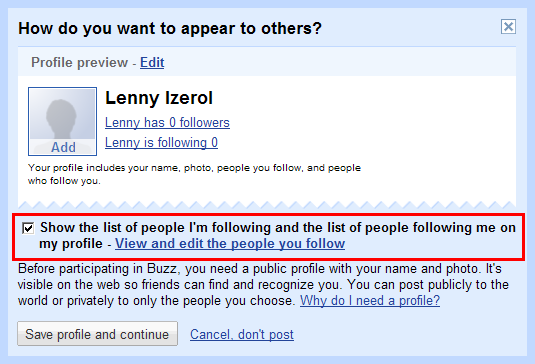
    The place where your messages usually are located is replaced with several items. First, there’s a text box that works much like Twitter, Facebook, or any other sProtect who is able to see who you follow and who follows youocial network. This is where you place the message you want to share. If you try to post a message there right away, Google will prompt you to create your profile (see Figure 1). Pay particular attention to the checkbox that reads “Show the list of people I’m following and the list of people following me on my profile”. This is one of the enhancements Google made two days after Buzz launched to help protect you and your follower’s privacy. If you’ve already setup a Google Profile, you can find this setting and more near your photo.

    Just above the text box are links. Clicking your name displays how the public views your profile. The Edit link lets you set your profile and share other items from other social networks like Flickr, your personal blog, and other sites. Below the message box are some helpful instructions to get you connected to other people and get started posting your Buzz messages. Once you start following people this area lists their updates in Buzz, and other social networks.

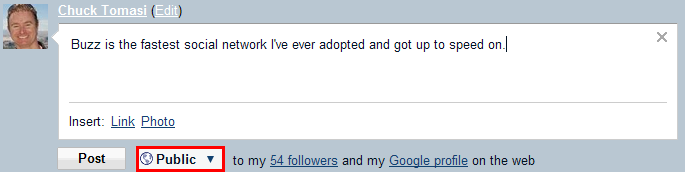
    When you want to post something to Buzz, just type in a text message. You can control who sees the message by using the dropdown list next to the Post button below the text area (see Figure 2).
    Select who you want to view your message

    If someone comments on your Buzz, the response shows up in your Gmail inbox. You can reply to the Buzz message right from within Gmail like a regular email message. If you don’t want the responses showing up in your inbox, you can create a filter that operates on the label “buzz” to automatically archive or delete them. Listen to the Gmail Podcast on filters and labels for more information how to manage your messages.

    Keep in mind, Buzz is still in its infancy despite being deployed to millions of people on its initial release. Things are likely to change rapidly over the next few weeks and I suspect I’ll need to redo this episode.

    From what I’ve seen so far, Buzz is as a good social network it just has a little maturing to do. If you’re concerned about privacy, wait a while and stay tuned to the Gmail Podcast and blog for continued updates.

    That’s all for this time. Comments, suggestions, or questions can be sent to gpodcast@gmail.com or check the website for full information and archives of all previous Gmail tips at chuckchat.com/gmail. And don’t forget about the short listener survey on the website. I really appreciate that so many of you have already done it and encourage more to do go and fill it out. It helps me understand who is listening and what I can do to provide you more valuable information on the Gmail Podcast.For more great information between the podcasts, follow me on twitter at gmailpodcast. I have no affiliation with Google other than as a satisfied Gmail user. Thanks for listening, and don’t forget to write.

    Update: 14-Feb-2010 17:12 – There IS a way to turn off Buzz. There’s a tiny link in the footer messages below the conversation index that says “Turn off buzz”. It removes your buzz tab. Your profile and any existing Buzz conversations remain intact in the event you want to turn it on again in the future.

  • Screen Layout

    Screen-LayoutTry GotoAssist Free for 30 days.

    This show is another in our getting started series with Gmail. It’s purpose is to help you understand the various parts of the Gmail screen layout and the functions they perform.

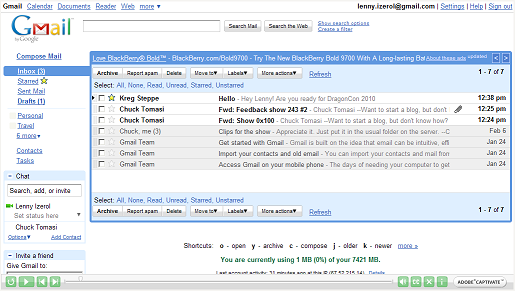
    The largest and most noticeable object on the screen is the conversation index. It’s simply a list of email messages in a condensed format, showing who a message is from, the subject, part of the message (called a snippet), and the time or date it was received. Messages with the same subject are combined in to groups called “conversations”. Gmail does this to help you keep track of related information. Other email readers refer to this as a “thread”. Some people find this a little confusing at first and wish there was a way to turn it off. There is no way to turn it off and I’m sure that after a time you will find the conversation layout a preferred way to see your email. By default, the message index displays your inbox, however it can display other messages you have searched for, messages you have labeled, and so on.

    On the left side of the conversation index, still within the list boundary, are a series of checkboxes. These are used to mark the conversations for additional actions such as archiving, deleting, labeling, and so on. You can select one or more messages by checking the checkbox or using the links just above the first message where it says Select All, None, Read, Unread, Starred, or Unstarred. This same list appears at the top and bottom of the conversation index.

    Also at the top and bottom of the conversation index is a menu of options labeled Archive,Report Spam, Delete, Move To, Labels, and More Actions. These menu buttons are the actions that complement the conversations you have selected. I’ll get in to some of these menu options in greater detail in other podcasts. A separate link to the right of the menu, labeled Refresh, allows you to update your inbox on demand rather than waiting a few minutes for Gmail to refresh automatically. As a quick example, when you select one or more conversations with the checkbox on the left then click Archive, the conversation is removed from your inbox, but still available on the server. If you click delete, the message is removed from the servers and gone.

    One of Gmail’s most used, but little appreciated features is it’s built in spam filter. Spam is unsolicited email for products or services you have no interest. It is the junk-mail of the Internet. As good as Gmail’s ‘spam filter is, a few slip through. You can help improve Gmail’s spam filter by selecting those troublesome messages and clicking the Report Spam button.

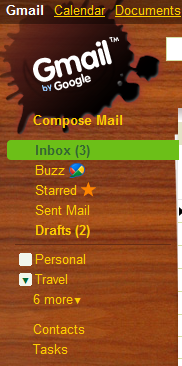
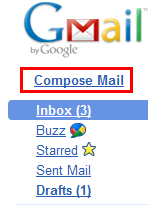
    To the left of the conversation index are several links. Just below the Gmail logo is a link labeled “Compose Mail”. This link takes you to a new screen to create a new email message. Composing messages is covered in greater detail in another podcast.

    A little further down are a group of links to your mail messages. The first is Inbox. As mentioned earlier, this are the conversations you have received and possibly read. The number next to any of these links indicates the number of conversations with unread messages in them. You can tell at a glance if, and how many, conversations need your attention.

    Next is a link labeled Starred. Starred messages are simply messages you have tagged to keep track of. What you use the star for is up to you. I use mine as a way to quickly tag messages I want to view at the end of the week for podcast material. Once done, I unstar the ones I use and leave the rest. Clicking this link displays the first page of conversations you have starred all grouped together. You can add or remove a star from any conversation or message you like by clicking the star just to the left of the senders name in the conversation index.

    The Sent Mail link displays the first page of messages you have sent. This is useful to verify you actually sent a message.

    Drafts displays all the messages that you have composed, saved, but not yet sent. If you have a long message, or want to wait before sending, you can find it in Drafts. As you compose a message, Gmail will save periodically, so don’t become alarmed if you see a number 1 appear here from time to time.

    Below Drafts is a short list of the most frequent labels you use. Labels are much like folders on other mail systems and Gmail creates several of them for you when you set up your account. Clicking any one of these links displays the conversations you have labeled or tagged with that label. I cover labels and managing your email in another podcast.

    Also on the left is a link to take you to your contacts and tasks. Not to sound like a broken record, yes, those too are also covered in greater detail in other Gmail Podcasts as is the chat feature also on the left below these two links.

    To search for messages in your inbox or archive, use the text box just to the right of the Gmail logo at the top. Type in the text you are searching for and click the Search Mail button.

    At the very top of the screen are links to other free Google services to help you manage your calendar, documents, and more.

    If you ever need help, and you cannot find a Gmail Podcast for it, use the Help link in the upper right of the Gmail screen.

    Finally, for security, be sure to click the Sign Out link in the far upper right when you are done using Gmail – especially on public computers like those found in hotels or libraries.

    One quick reminder, please consider filling out the Gmail Podcast survey. It will help me understand who is listening and how I can provide you with more useful information. Look for the survey link at the top of the website at chuckchat.com/gmail.

    screen-layout-movieFYI – This podcast is also available as a full motion video demo. I am considering doing more of these as premium content for those who subscribe to the monthly donations to the tip jar.

    As an added incentive, the videos will be free from advertisements.

    If you’re interested, please let me know. If there is sufficient interest, I will continue to develop these.


  • General Settings

    Settings

    This episode is sponsored by Citrix GotoAssist Express. Try it free for 30 days.
    This episode is the second in our Getting Started series on Gmail. I’ll walk you through the basics to setup your account.If you’re brand new to Gmail, you may want to go back and listen to the previous show on setting up an account. You can find it at the Gmail Podcast website, chuckchat.com/gmail, under the Getting Started page. If you’ve been using Gmail for a while, I recommend you still listen. You might hear something new.

    When you created your Gmail account, you provided a few items like your name, location, and a few other things. In this episode I’ll take deeper dive in to some of the other items you can configure.

    Begin by going to mail.google.com and logging in to your Gmail account. Next, click the Settings link in the upper right corner of your Gmail web page.

    The settings screen displays several links, or tabs, across the top. These are labeled General, Accounts and Import, Labels, Filters, Forwarding and POP/IMAP, Chat, Web Clips, Labs, Offline, and Themes. This show covers the General settings. I’ll go in to more detail for the other tabs in other Gmail Podcast episodes.

    The General tab includes the general settings to you account. The Language field allows you to set the language and character set used to display the Gmail application. This changes the menus, labels, and other aspects of the Gmail interface. If you get messages in French, this setting will not automatically translate them to English for example.

    Maximum page size sets the maximum number of conversations (or messages with the same subject) on a page. You can set this to 25, 50, or 100. The more messages you display, the more you can select without going to another page. However, too many messages and you may have to use the scroll bar on your browser.

    Keyboard shortcuts allows you to enable or disable the use of keyboard shortcuts in Gmail. Keyboard shortcuts allow you to save time by typing “c” for example, to compose a new message from the conversation index. These can be a real time saver. if you ever get confused, you can use the “?” key to show you the shortcut key help.

    External content determines whether or not Gmail will display images in your messages from trusted senders or prompt you each time. Since displaying messages can be a security issue, Gmail doesn’t simply display all images. If you’ve already sent messages to a person twice, they are considered a trusted sender and Gmail will display images from that person.

    Browser Connection: Security is important with Gmail. As a result, Gmail offers a secure connection using the HTTPS protocol. This is the default connection between your browser and the Gmail server. When you use HTTPS, the traffic on the Internet is encrypted. I recommend you keep this setting turned on unless you have a strong reason to leave your information unsecured.

    My Picture lets you upload an image that people see when you email or chat. Click the Select a picture link to get started uploading an image.

    Contacts’ pictures determines whether you are going to use the images that your contacts provided for themselves or only ones you uploaded as part of your contacts.

    The Signature option allows you to automatically place one or more lines of text at the end of each message you compose. To do this, change the radio button from No Signature to one with the text box. Place some text in the text box. This is what gets appended to your messages.

    Personal level indicators enables or disables little arrows next to the subject line of each conversation in the index. This is handy to know at a glance how the message was addressed. No arrow indicates it was a mass mailing. A single arrow indicates it was sent to you and others and a double arrow indicates it was sent only to you.

    The snippets setting tells Gmail whether you want to see the subject and the first part of the message in the conversation index or just the subject. How much of the snippet that’s dispayed depends on your video display and browser settings. By default, this is on.

    Are you heading on vacation or business trip and won’t be able to check your Gmail for a while? You may want to use the Vacation Responder option to send an automatic message to people trying to contact you to let them know you are out and when you will be able to respond.

    Outgoing message encoding tells Gmail what character set to use when sending your messages. In most cases, you won’t need to worry about this setting. However, if your recipient is having trouble reading your messages, you may want to set this to Unicode (UTF-8).

    Finally, the attachments setting lets you upload multiple files and see progress bars when you attach files to messages. The catch is, it requires Flash to be installed on your machine. If you’re not sure, head over to Adobe.com and download the latest Flash player for free. If you’re having problems with file attachments, try setting this to Basic Attachment Features and see how that goes.

    As a reminder, if you’ve changed any settings, click Save Changes at the bottom of the screen and you’ll be taken back to the conversation index with your new settings in effect.

    Subscribe to the podcast for free via iTunes to have the show automatically delivered, or watch the Gmail Podcast website for my next installment of the Getting Started series.

  • Texting – Part 3

    sms_smlThis episode is sponsored by GotoAssist. Try it free for 30 days

    Welcome to part 3 of our 3 part series on texting from Gmail and Google applications. If you haven’t listened to parts 1 or 2, you can download them from iTunes or listen directly from the Gmail Podcast blog at chuckchat.com. That information is not required for this podcast, but it makes for a more complete picture of what you can do with Google applications and text messaging.
    In parts 1 and 2 I showed you how to send free SMS messages from Gmail and Google Voice. In this part of the series, I cover how to send SMS messages to Google Calendar to quickly create appointments.

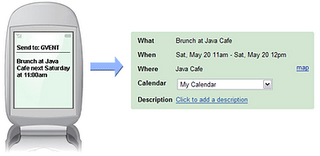
    Let’s say I want to meet a friend for lunch tomorrow. I simply send a text message to GVENT (48368) with a message “Lunch with Bill at The Point tomorrow noon”. The text message gets sent to Google and put in your calendar. When the appointment is put on your calendar, you receive a text message confirming your appointment.

    There are several ways to construct your message. If you remember “who”, “what”, “when”, and “where” you should have no problems. Only “what” and “when” are required. The message format follows the same rules as the Quick Add feature in Google Calendar.
    The “what” is any text. The event title is created from this.

    “When” is the date and time of your appointment. Leaving the time off makes the appointment an all day event. Using the words “at” or “on” can help Google recognize the when. By default, Google calendar creates one hour appointments. You can optionally specify start and end times or a duration.

    You can add people to the guest list if you include “with” and one or more email addresses.

    Where is also any text following an “at” or “in”.

    Other examples are:

    • Disc golf with Jerry at 6PM
    • Take Cat to Vet Monday 3:00PM
    • National conference 3/15 – 3/20 in Orlando
    • Weekly one-on-one with Jason 10 – 10:30 every Wednesday at Jason’s Office

    I use this feature all the time and absolutely love it when my wife tells me something. I can quickly text to Google Calendar and know it will appear our shared family calendar.

    Here is some helpful reference information from Google how to create SMS text messages that get turned in to appointments.

  • Texting – Part 2

    google-voice-sms

    This show is sponsored by Citrix GotoAssist Express. Try it free for 30 days

    Welcome to part 2 of our 3 part series on texting from Gmail and Google applications. If you haven’t listened to part 1, you can download it from iTunes or listen directly from the Gmail Podcast blog at chuckchat.com.

    In part 1 I showed you how to send free text messages from Gmail chat. Another way is to use Google Voice. Google Voice has several features that make it attractive, including:

    • Publish a single phone number and have it ring your home, work, and mobile phone or any combination based on the caller.
    • Free voice mail with personalized greetings
    • Voice mail automatically converted to text and emailed to you with both the audio file and translated text attached
    • Listen to, or read, your voice mail on your computer or mobile phone
    • Free text messaging

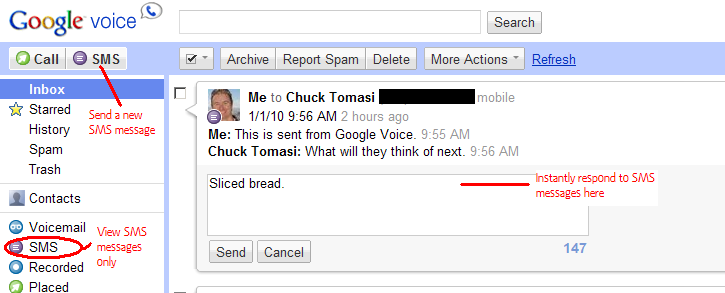
    Begin by signing in to Google Voice using your Gmail account at voice.google.com. At the top, just under the logo, click the SMS button. Begin typing the name of the contact or their phone number. Make sure you have mobile phone numbers associated with the contacts you intend to send text messages. Unlike the Gmail Chat feature, it will not prompt you for the contact if you enter only the number. Similarly, if you enter a name that has no mobile phone number associated in your contacts list, you cannot send a message.

    After you have entered a phone number or contact, type your message and press send. It’s that simple. Managing your Google Voice conversations from the web interface is very similar to Gmail. Responses will show up in your Inbox or you can look at just SMS messages and filter out voice mail by clicking the SMS link on the left. You can reply by typing in the text area just under the conversation and click Send.

    Currently, Google Voice is free and open by invitation only. Contact me if you are interested in trying it out.

  • Texting – Part 1

    gmail-sms-from-chatThis episode is sponsored by GotoAssist Express. Try it free for 30 days.
    Google offers a number of ways to send and receive text messages for free without using a mobile phone. This is part 1 of a 3 part series on using text messages, or SMS, with Gmail and other Google applications.

    Let’s begin with Gmail. Texting from Gmail chat is fairly easy. To do this you will need to enable the Labs feature “Text (SMS) in Chat”. You can find this in the Labs tab in the Settings page.

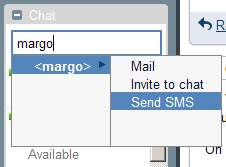
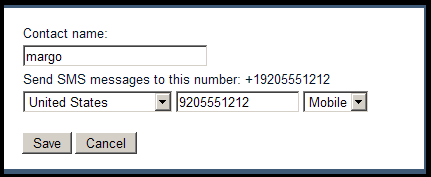
    Once the labs feature is setup, begin by opening the chat window and signing in to chat. Type the name or phone number of the person you want to send a text message to in the “Search, add, or invite” box. If this person is not already in your contacts list, don’t worry. As you type, a window appears under your text with options “Mail, Invite to Chat, and SMS”. If you entered a phone number, only the SMS option will be displayed. Finish entering the text then choose the SMS option and a window appears. In the window, finish filling out the contact information. If you entered a name, provide the phone number, if you entered a phone number then provide a name and click Save. This information will be added to your contacts list for easier reference later.

    gmail-sms-contactWhen Gmail gets done saving the contact information, a window appears at the bottom of the screen – much like a chat window. Type you text message and send it with the Enter key. If the other person responds, you will receive a response in the same window. Gmail makes it as easy to send text messages as it is to chat – and best of all it’s free.
    Another way to send text messages from Gmail is to use the SMS in Chat gadget. This is also a labs feature that works very similar to the Text (SMS) in Chat feature. I don’t recommend using this labs feature. First, it requires the Text (SMS) in Chat feature to be turned on – so why not use that instead? Second, at the time this article was written, the labs feature seems to have a bug in that it prompts you for contact information each time instead of reusing previous entries from the contact database. This creates duplicate entries in the contact database each time you use it.

    Keep in mind that although the text messaging using Google may be free to you, it may not be free to the person receiving or sending replies. Currently, text messages from chat only work with US phones.

    Listener John writes in and asks “Is there a way to set a primary email for a contact that has multiple addresses?”

    While I cannot find a definitive rule or setting to make any particular email address the primary one, my own experience has shown me that mutliple email addresses seem to be ordered by the frequency they are used. The more you use a specific address for a particular person, the more likely that address will appear at the top of the list. If you’ve got information to the contrary, let me know on the blog or drop me an email.